Snowflake Postgres helps you manage your instances through a variety of instance management operations. These operations are forms of
maintenance that keep your instances operational and secure.
A brief service interruption is required to perform instance management operations. Please ensure that your applications are able to
automatically reconnect to the database.
Note
An instance’s connection string will remain the same across instance management operations unless you explicitly rotate the credentials.
When required to ensure the health of your instance, we may schedule maintenance operations on your behalf (for example, to modify
instance storage size).
For a detailed description of how instance maintenance is carried out by our platform, see Snowflake Postgres Maintenance.
You can fork an instance to create a new instance from an existing instance, optionally choosing a point in time to fork from. By default
the new instance will be forked from the current state of the source instance. Read more about forking in Snowflake Postgres point-in-time recovery.
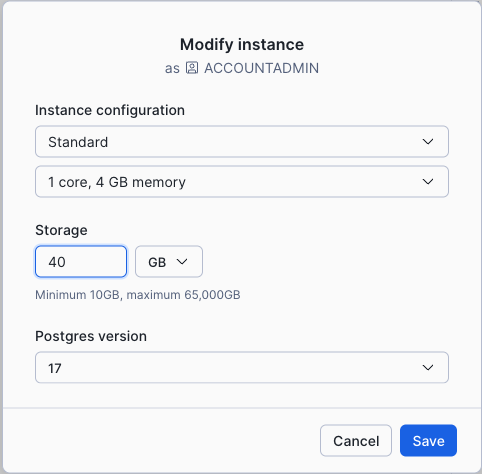
Change the amount of storage. Both increases and decreases in storage size are supported.
Upgrade the Postgres version to a newer major version.
Modifying your instance’s resource configuration or major version requires a failover maintenance. See
Snowflake Postgres maintenance failover for more information.
To make a change:
In the navigation menu, select Postgres.
Select your instance.
In the Manage menu at the top right, select Modify.
Select the new COMPUTE_FAMILY and/or storage size from the dropdown menus. See Postgres major version upgrades
for more information about changing the Postgres version.
Select the Save button to confirm the changes.
If you have a maintenance window set for your instance the upgrade maintenance failover will proceed during the next window after
the replacement instance is ready. If you do not have a maintenance window set for your instance the upgrade maintenance failover
will proceed as soon as the replacement instance is ready.
Use the ALTER POSTGRES INSTANCE command to make changes to the configuration of a Snowflake Postgres instance.
Modifying a Postgres instance examples
Change an existing instance’s COMPUTE_FAMILY to STANDARD_M and storage size to 100GB in a single operation:
If you have a maintenance window set for your instance, the required maintenance failover will proceed during the next maintenance window
to occur after the replacement instance is ready. To instead have the maintenance proceed as soon as the replacement instance is ready
use APPLY IMMEDIATELY:
Alternatively, you can use an APPLY ON ‘<timestamp>’ clause to specify a future date or timestamp up to three days from the current
for the maintenance failover to proceed.
If you plan to decrease the storage size of your instance, please note that we currently allow the resize to be greater than or equal to 1.4x
the current disk usage to reduce alerting and immediate resizing up.
Important
COMPUTE_FAMILY and STORAGE_SIZE_GB changes made to a primary instance are not also applied to any present read replicas. They require
their own Modify operations.
COMPUTE_FAMILY and STORAGE_SIZE_GB changes are also applied to HA standbys if HA is enabled for the given instance.
HA standby instance replacements for these operations always happen as soon as their replacement instances are ready since that does
not require a downtime for their primary servers.
Changes to an instance’s Postgres major version work via a Snowflake Postgres maintenance failover
operation just as with other Modify operations, but there are some important differences where HA and read replica instances are concerned.
Postgres major version upgrade operations can only be applied to primary instances. When a primary instance undergoes a major version
upgrade, the same upgrade is applied to any present read replica and HA instances by rebuilding them from a fresh backup of the primary
instance taken after the primary’s upgrade is complete.
This means that during the time it takes to run a fresh, post-upgrade backup of the primary and build a new HA and/or read replica instances
from that backup:
The primary will not have a valid HA instance present.
While they will remain accessible, read replicas will have stale data since they will not replicate from the primary until their
replacement instances are ready.
When High Availability (HA) is enabled, your instance includes a standby host that replaces the primary if your primary
becomes unavailable. You can read more about this in Snowflake Postgres High Availability.
You can create a replica of your instance from the dashboard. A replica is a read-only copy of the source instance that is kept in sync
with the source instance. Find about more about creating and using replicas in Snowflake Postgres Read Replicas.
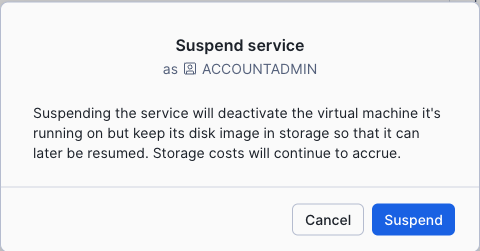
Suspending an instance deactivates the virtual machine that it’s running on while keeping its disk image in storage so that the instance can be resumed.
Normal billing for the instance is suspended, but storage costs will continue to accrue. The existing 10 days’ worth of backups are also retained.
If there were operations that were pending restart to be applied, they will be applied when the instance is resumed.
Snowflake Postgres allows you to suspend your instance from the dashboard.
In the navigation menu, select Postgres.
Select your instance.
In the Manage menu at the top right, select Suspend.
Click the Suspend button to confirm the action.
To suspend a Snowflake Postgres instance, run the ALTER POSTGRES INSTANCE command with the SUSPEND option. For example:
You can resume a suspended instance at any time. The time it takes to resume an instance depends on the instance and the size of the dataset.
When you resume an instance, normal billing and backups will also recommence.
In the navigation menu, select Postgres.
Select your instance.
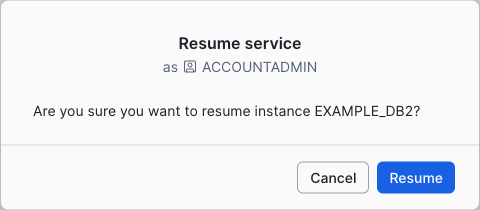
In the Manage menu at the top right, select Resume.
Click the Resume button to confirm the action.
To resume a Snowflake Postgres instance, run ALTER POSTGRES INSTANCE … RESUME:
ALTERPOSTGRESINSTANCE[IF EXISTS]<name>RESUME
These operations are asynchronous. The DESCRIBE command may be used to track the status of these operations.
Example: Resume a Snowflake Postgres instance named my_instance
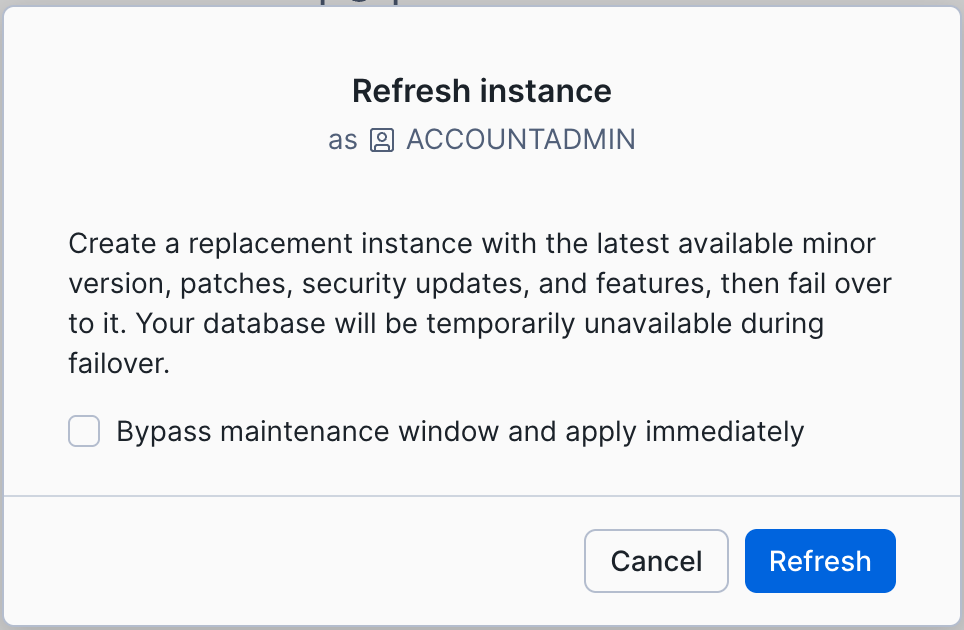
Refresh is a instance maintenance operation that will replace your instance without making any changes
to its configured resources. Use this to ensure your instance has up-to-date OS security patches, the latest Postgres minor version for its
given major version, and works properly with the latest Snowflake Postgres features.
In the navigation menu, select Postgres.
Select your instance.
In the Manage menu at the top right, select Refresh.
If you want the Refresh maintenance failover to occur as soon as the replacement server is ready, select
Bypass maintenance Window and apply immediately.
Click the Refresh button to confirm the action.
To run an instance Refresh via SQL use ALTER POSTGRES INSTANCE with the COMPUTE_FAMILY value matching its current value. For
example, if you have a STANDARD_M instance named myinstance use this to run a Refresh maintenance and have the maintenance’s
failover operation happen during the first maintenance window after the replacement server is ready:
Use this to have the Refresh maintenance failover to occur as soon as the replacement server is ready instead of waiting for
its next maintenance window if it has one set:
You can restart either PostgreSQL or the underlying server that runs your Postgres instance if needed. This type of instance management
operation restarts the server in-place, without creating a replica or performing a fail-over. Read more about restarting services in
Snowflake Postgres maintenance restart.
Regenerating credentials will return a new connection string for your database instance, replacing the existing credentials. Read more about
this topic in Snowflake Postgres Roles.
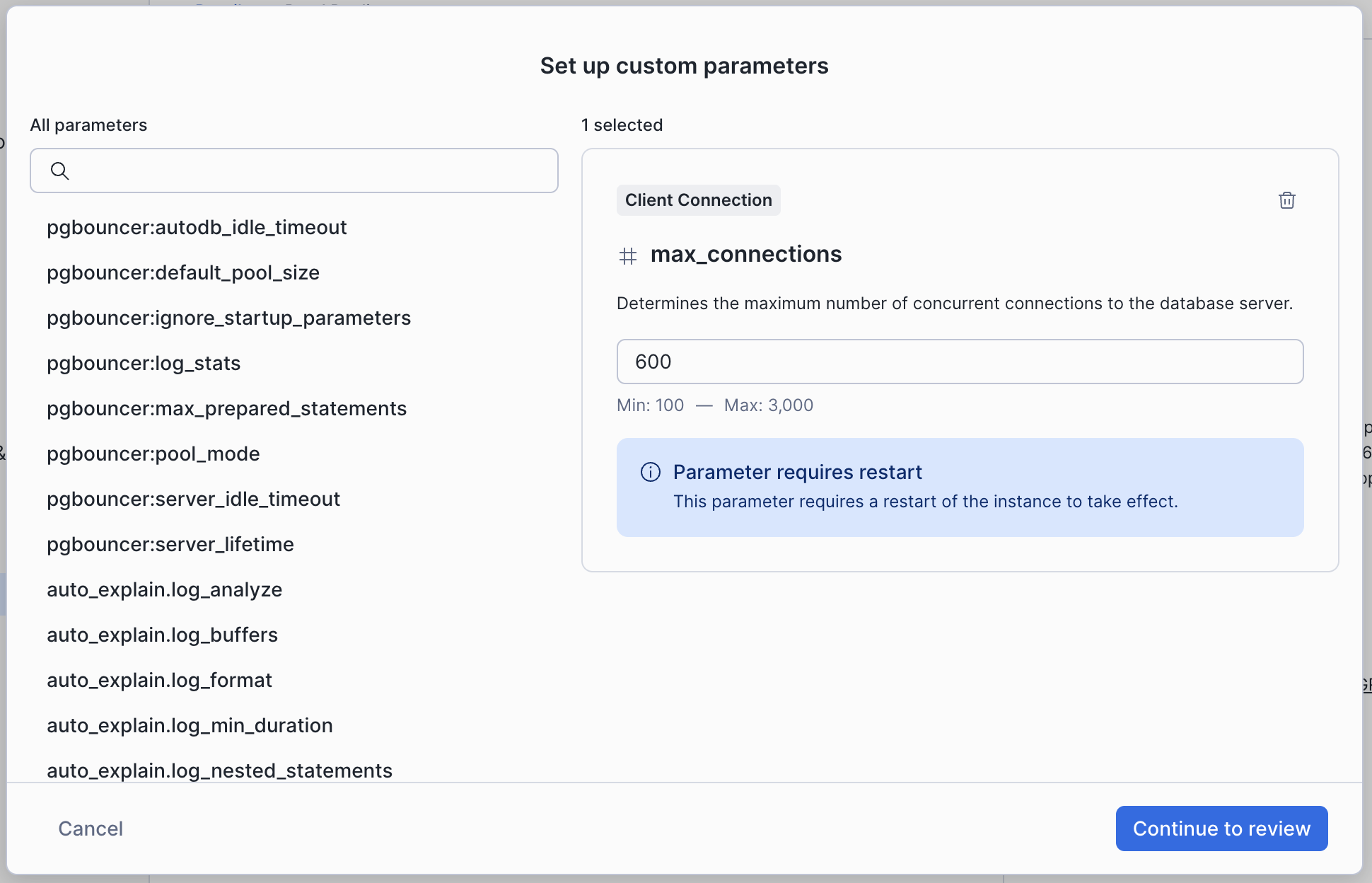
You can make changes to many of Postgres’s own server settings for your Snowflake Postgres instances. You can see the list of available
configuration parameters in Snowflake Postgres Server Settings.
To change the Postgres settings on a Snowflake Postgres instance, you must use a role that has been granted the OWNERSHIP or OPERATE privilege on that instance.
To make a change:
In the navigation menu, select Postgres
Select your instance
On the right side of the page select the edit icon next to Custom parameters
Choose configuration parameters from the list, or use the search box to find specific parameters.
Enter the new value for the configuration parameter.
When you’ve finished add new values for parameters, click Continue to review, and then click Submit to confirm the changes.
With the POSTGRES_SETTINGS option, you specify a JSON-formatted string with the following structure:
'{"component:name" = "value", ...}'
Changes to some of the Postgres settings may require an instance restart to take effect. These changes will not take effect
unless you specify APPLY IMMEDIATELY in the ALTER POSTGRES INSTANCE statement. For the list of settings that require a restart,
consult the table in Postgres settings.
Example: Set the work_mem configuration parameter to 128MB for a Snowflake Postgres instance named my_instance
Any instance management operation, whether it’s creating a new instance or modifying an existing
one, takes some time to complete. The exact duration depends on many factors, including your
data and schema sizes, and how busy your instance is. An instance’s state gives
you insight into the progress of an ongoing operation. It is shown in the dashboard, or you can
check it by running the DESCRIBE POSTGRES INSTANCE command.
Possible instance states are listed below. During an instance modification operation, the
replacement instance goes through all of the states listed in the first table. A new instance
being created goes through some but not all of the states listed. The following table lists
some additional states you might see during normal operations.
States seen during create, modify, and fork:
State
What’s happening
Typical duration
Next state
Creating
A new underlying server is being created
1-2 minutes
Restoring
Restoring
Latest base backup is being restored to the server
Variable
Starting
Starting
Postgres is being started on the instance and WAL that accumulated during base backup is being applied
Variable
Replaying
Replaying
Accumulated WAL since last base backup is being replayed
Variable
Finalizing
Finalizing
Instance configuration is being finalized and the server is being made available
1-2 minutes
Ready
Ready
New instance matches source instance and is ready for the operation to proceed. If scheduled for an upcoming maintenance window, the instance is kept Ready until that time. If scheduled for now, the operation proceeds once it reaches Ready. Running instances normally show the Ready state.
N/A
N/A
Other instance states that you might see on the platform:
State
What’s happening
Typical duration
Next state
Restarting
Underlying server is being restarted
1-2 minutes
Ready
Resuming
A new server is being built and a suspended instance is being resumed