Backups for disaster recovery and immutable storage
Backups help organizations protect critical data against modification or deletion.
Backups represent discrete snapshots of Snowflake objects. You choose which objects to back up, how frequently to back them up, how long to keep the backups, and whether to add a retention lock so that they can’t be deleted prematurely.
Use cases for Snowflake backups
The following use cases are typical applications of backups:
- Regulatory compliance:
Backups with retention lock help organizations, financial institutions, and related industries address regulations that require records to be retained in an immutable format.
Note
Snowflake has engaged Cohasset Associates to perform an independent assessment of our Backups feature for compliance with key regulatory recordkeeping requirements, including SEC 17a-4(f), SEC 18a-6(e), FINRA Rule 4511(c), and CFTC Rule 1.31(c)-(d). This Cohasset assessment provides independent, third-party verification that Snowflake’s immutable storage controls support the creation, protection, and retention of data, and provides customers with confidence that Snowflake meets critical industry standards for regulated data retention subject to the evaluated regulations.
For the full compliance report that applies to Snowflake backups with retention lock, see the Snowflake Compliance Center (https://trust.snowflake.com/resources?s=jv88d2ujxzj9kcnz43w31&name=snowflake-cohasset-assessment).
- Recovery:
Backups help organizations create discrete snapshots to protect and recover business-critical data in case of accidental modifications or deletions.
- Cyber resilience:
Backups with retention lock are part of an overall cyber-resilience strategy. They help organizations protect business-critical data during cyber attacks, especially ransomware attacks. The retention lock ensures that this data can’t be deleted by the attacker, even if they gain access to the account by using the ACCOUNTADMIN or ORGADMIN roles.
Key concepts
This section provides an overview of the key concepts for backups in Snowflake.
Backup
A backup represents a point-in-time snapshot of an object.
- The object can be a single table, a schema, or an entire database.
- A specific backup can be identified by a unique ID generated by Snowflake.
- A backup can’t be modified. It can, however, be deleted, and the backup expiration period can be modified (unless a retention lock is applied).
During day-to-day operations, you rarely interact with individual backups. Instead, you manage the backup sets that contain them. For example, you get a list of backups by running the SHOW BACKUPS IN BACKUP SET command. You create a new backup by running an ALTER BACKUP SET command.
Backup set
A backup set is a schema-level object that contains a set of backups for a specific database, schema, or table. Snowflake has SQL commands to CREATE, ALTER, DROP, SHOW, and DESCRIBE backup sets.
You can have multiple backup sets for the same object.
The life cycle of the backups within a set is determined by an optional backup policy that you can attach to the backup set. You can also add or delete backups manually in a backup set. Your ability to delete backups is affected by other factors, in particular retention lock and legal hold.
Backup policy
A backup policy is a schema-level object that contains the settings that define the life cycle of the backups within a backup set. These settings include schedule, expiration, and retention lock.
-
The schedule determines when backups are created. The schedule can be defined as an interval in minutes, or as a cron expression. For example, if the schedule is set to one hour, a backup of the object is taken every 60 minutes.
-
The expiration period is the length of time the backup is valid. After a backup expires, Snowflake deletes it automatically, unless a legal hold is applied to that particular backup.
Tip
If the backup set doesn’t have a retention lock and the particular backup doesn’t have a legal hold applied, you can delete the backup manually before the end of the expiration period. You can manually delete backups one at a time, always starting with the oldest backup that doesn’t have a legal hold.
Each backup policy must have one or both of the schedule and expiration period properties. For example, you can create a policy with a schedule and an expiration period, and let Snowflake handle all creation and removal of the backups in all backup sets where that policy is applied. Alternatively, you might create a policy with a schedule and no expiration period if you want to manage removing older backups yourself. Or, you can create a policy with an expiration period but without a schedule, and then manage backup creation yourself. You can’t create a policy with no schedule and no expiration period.
If you associate a backup policy with a backup set, you can do so when you create the backup set, or you can apply the policy later. Or, you can have a backup set that doesn’t have an associated backup policy. In that case, you manually control when to take new backups and expire old ones.
You can apply a backup policy to multiple backup sets. If you modify a backup policy, Snowflake applies the changes to all backup sets that the policy is attached to.
Retention lock
A retention lock protects a backup from deletion for the defined expiration period. You can use a backup with a retention lock for backups for regulatory compliance and cyber resilience. The following restrictions apply for a backup set with retention lock:
- Backups can’t be deleted by any role, including the ACCOUNTADMIN role.
- You can’t decrease the backup expiration period, although you can increase the expiration period.
- You can’t drop a backup set if there are any unexpired backups in the set.
- You can’t drop a schema that contains a backup set with any unexpired backups.
- You can’t drop a database that contains a backup set with any unexpired backups.
- You can’t drop an account that contains a database with a backup set that has any unexpired backups.
Important
Applying a backup policy with a retention lock to a backup set is irreversible. Due to the strong guarantees that are needed for regulatory compliance, after you put a retention lock on a backup set, you can’t revoke the lock. Snowflake support also can’t revoke such a retention lock. Plan carefully before you set a retention lock on a backup set with a long expiration period, to avoid unexpected storage charges for undeletable backup sets, and the schemas and databases that contain them.
If a Snowflake organization is deleted, the organization is no longer a Snowflake customer. In this case, Snowflake deletes all backups, including those with retention locks. Deleting a Snowflake organization requires the involvement of Snowflake support. It isn’t something that an administrator can do by accident.
Legal hold
The legal hold feature of Snowflake backups prevents backups from being overwritten or deleted. That way, you can preserve Snowflake databases, schemas, or tables based on your own legal requirements.
Snowflake lets you place a legal hold on specific backups. When a Snowflake backup is under legal hold, the following conditions apply:
- Nobody can modify the backup.
- Nobody can delete the backup. That’s true even if the backup has passed its EXPIRE_AFTER_DAYS period.
- Access to the backup is logged and auditable.
- The legal hold can be removed by a privileged user, unlike a retention lock.
Important
If you replicate a backup set, make sure to perform a refresh immediately after placing a legal hold on a backup in that backup set. If you perform a failover before you replicate the backup set that contains the legal hold, the original backup set can be overwritten when you fail back to the original primary account, potentially erasing the legal hold.
Overview of the backup lifecycle
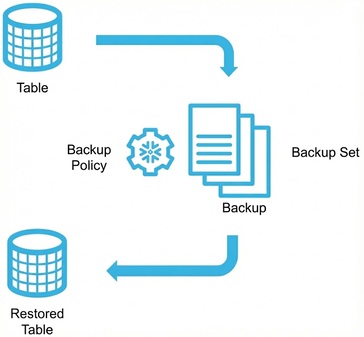
The following diagram shows how the Snowflake objects, backups, backup sets, and backup policies relate to each other. The diagram involves the simplest kind of backup: one for a single table. Each backup operation produces a new backup. All the backups for that particular object are grouped together in a backup set. The automatic addition and removal of backups in the backup set is governed by the backup policy. To recover the information from a backup, you use a CREATE command to create a new object from a specific backup.
How backups work
Backups are zero-copy duplicates of a Snowflake object similar to clones. Backups don’t make copies of table data when they are created. The backup mechanism backs up table data without incurring the additional cost or time of copying the data.
Snowflake stores data in files that are immutable, and maintains pointers from backups to the data files that underlie the table. As the table evolves and is modified, Snowflake ensures that each data file is protected from deletion as long as there is an unexpired backup that references that file.
Restrictions for backups
Snowflake enforces the following restrictions for backups:
- You can’t modify the retention lock for a backup policy.
- When a policy has a retention lock, you can increase the expiration period, but you can’t decrease it.
- The minimum schedule interval for scheduled backups is one hour (60 minutes).
Comparison of backups with other disaster recovery and business continuity features
Backups provide the following advantages that are different from other Snowflake business continuity and disaster recovery features, such as replication and Time Travel:
- You can enable long-term retention for backups. Long-term retention helps with recovery, regulatory compliance, and cyber resilience against threats such as ransomware or insider attacks.
- Retention lock ensures that backups can’t be deleted by any user, including account administrators.
- You can schedule backups on a different timeframe than you use for other data transfer operations, such as replication refreshes.
- You can backup and restore individual table objects, or container objects such as entire schemas or databases.
- You can prevent the retention time for backups from being reduced after the backup is taken, by using a backup policy that includes a retention lock. That’s different from the Time Travel feature, where you can reduce the retention interval to zero.
- Unlike Time Travel and Fail-safe, backups preserve data from more types of objects than just tables and table data.
- The speed and storage efficiency of taking backups is similar to the zero-copy mechanism used for cloning.
- The way all backups for the same object are grouped into backup sets makes management simpler than if you used clones to implement your own backup mechanism. For example, you don’t have to manage large numbers of objects, devise a naming scheme to keep track of the cloned objects, or implement a scheduling mechanism to delete old clones. Also, unlike with cloned objects, backups can’t be modified after you create them.
- Each backup represents a single table, schema, or a database as of the specified point in time. backups don’t include account-level objects such as users or roles. Some kinds of tables and other database-level objects aren’t included in schema and database backups. For more information, see backup objects.
- Backup-related objects are stored in the same cloud service provider (CSP) region as the associated database, schema, or table. For business continuity and disaster recovery scenarios, you typically combine backups with Snowflake account replication. That way, all the backup sets and backup policies can be replicated to a different region or a different CSP and recovered even if there’s an outage affecting the original region or CSP.
- Backup sets and backup policies can’t be cloned. If you clone a schema or database that contains such objects, they aren’t included in the cloned schema or database.
Backup objects
You can create backup sets for tables, schemas, and databases.
References from tables to other objects
Objects, such as views or functions, can refer to objects outside the schema or database in the backup. To ensure that such references continue functioning after you restore from a backup, use one of the following strategies:
- If the tables and the other objects that they refer to are all in the same schema or the same database, create a backup set for the entire schema or database. That way, Snowflake restores all the interconnected objects at once when you restore from the backup.
- If objects in a backup set refer to objects that aren’t included in the backup set, be aware that when a backup is restored, the references from the restored objects point to the original objects from the other database or schema. If you dropped those other objects or changed their properties after taking the backup, you might encounter errors when you access the restored objects.
- For account-level objects, any references from restored objects always point to the original account-level object. That’s because the account-level objects aren’t part of any backup. For example, a schema backup might contain a secret that refers to a security integration. The security integration is an account-level object and can’t be included in any backup.
Types of objects in database and schema backups
The following table lists the objects that are included in a database or schema backup:
| Object | Included in backup | Notes |
|---|---|---|
| Permanent tables | Yes | Time Travel information for tables isn’t stored as part of a backup. |
| Transient tables | Yes | Such tables continue to be transient tables after you restore them. Transient schemas and transient databases also retain the transient property after you restore them. |
| Temporary tables | No | Temporary tables are session scoped and aren’t included in backups. |
| Dynamic tables | Yes | When you restore a dynamic table from a backup, the table is restored in a suspended state. Snowflake automatically initializes the new table during its first refresh. |
| External tables | No | |
| Hybrid tables | No | |
| Apache Iceberg™ tables | No | Dynamic Iceberg tables are also not included in backups. |
| Table constraints | Yes | |
| Event tables | No | |
| Sequences | Yes | |
| Views | Yes | |
| Materialized views | No | |
| Secure views | Yes | |
| File formats | Yes | |
| Internal stages | No | |
| External stages | No | |
| Temporary stages | No | |
| Directory tables | No | |
| Pipes | No | |
| Stored procedures | Yes | SQL, Javascript, Python, Java, and Scala procedures are all supported. |
| User-defined functions (UDFs) | Yes | SQL, Javascript, Python, Java, and Scala functions are all supported. Both scalar UDFs and user-defined table functions (UDTFs) are included in the backup. Java UDFs in backups have the same requirements as in Limitations on cloning. |
| Streams | No | |
| Tasks | Yes | Tasks are included in the backup. Tasks restored from a backup are suspended and must be resumed. |
| Data metric functions (DMFs) | No | |
| Policies | Yes | The following kinds of policies are included in a schema or database backup:
If any table included in the backup has any other kind of policy applied (for example an aggregation policy, a projection policy, or a storage lifecycle policy), backup creation fails. |
| Grants | Yes | If you drop a role, associated ownership grants are transferred to the role that performs the DROP ROLE command. Grants other than ownership are deleted in this case. Therefore, the grants on a restored object might differ from the grants that existed when the backup was created. |
| Database roles | No | If the backup includes a database role or any object with an ownership grant to a database role, backup creation fails. |
| Object tagging | Yes | |
| Alerts | Yes | |
| Network rules | Yes | |
| Github repos | No | |
| Models | No | |
| Model monitors | No | |
| Datasets | No | |
| Notebooks | No | |
| Contacts | No | |
| Cortex search services | No | |
| Dbt projects | No | |
| Image repositories | No | |
| Listings | No | |
| Organization listings | No | |
| Pipes | No | |
| Policy (aggregation) | No | |
| Policy (authentication) | No | |
| Policy (feature) | No | |
| Policy (join) | No | |
| Policy (packages) | No | |
| Policy (password) | No | |
| Policy (privacy) | No | |
| Policy (projection) | No | |
| Policy (session) | No | |
| Provisioned throughput | No | |
| Semantic views | No | |
| Services | No | |
| Streamlits | No |
How Snowflake associates objects with their backup sets
When you create a backup set for a database, schema, or table, Snowflake associates the backup set with the internal ID of that database, schema, or table. If you delete the original object, you can’t add any more backups to that backup set. This behavior applies even if you recreate an object with the same name, or replace it with an object that was restored from a backup.
If you instead rename the original object, then you can continue making more backups of it by adding more backups to the same backup set. In that case, the output of SHOW BACKUP SETS changes to reflect the OBJECT_NAME value of the renamed object.
If you want to make backups of a table but you frequently drop and recreate that table, perhaps through CREATE OR REPLACE statements, include it in a backup set for the schema or database that contains the table. That way, you can keep using the same backup set regardless of changes to the table.
When you restore a table from a backup, the restored table starts with a different name than the original. Suppose that you want to completely replace the contents of the original table with the backup data, and continue to use the same backup set for more backups of that same table. In that case, use a TRUNCATE or DELETE statement to remove the contents of the original table, and an INSERT … SELECT statement to copy the data from the restored table. Don’t drop the original table and rename the restored table to the name of the original table.
Backups and encryption
The data within backup sets is protected by the same end-to-end encryption as other Snowflake objects and table data. For more information about Snowflake encryption, see Understanding end-to-end encryption in Snowflake.
Key rotation also applies to the data within backups.
Backups and data lineage
Snowflake doesn’t preserve data lineage metadata with database, schema, and table backups. After you restore an object from a backup, you can’t use Snowsight to view lineage information for the restored data.
Cost for backups
The following table describes charges for backups.
For information about credit consumption, see the Snowflake Service Consumption Table.
| Cost component | Description | Billed |
|---|---|---|
| Backup compute | Snowflake-managed compute service generates scheduled backup creation and expiration. | Yes |
| Restore compute | Snowflake-managed warehouses are used to restore objects from backups. | Yes |
| Backup storage | Snowflake-managed cloud object storage to store backup data. | Billed for bytes retained for backups, similar to bytes retained for clones. |
You can monitor costs for backup storage in the TABLE_STORAGE_METRICS
view using the RETAINED_FOR_CLONE_BYTES column, and in the
BACKUP_STORAGE_USAGE view.
Access control privileges
The following table lists privileges and the object type on which the privilege is granted for managing and using backups.
| Privilege | Object type | Description |
|---|---|---|
| CREATE BACKUP POLICY | Schema | Grants the ability to create a backup policy in a schema. The role granting this privilege must also have the USAGE privilege on the schema. |
| CREATE BACKUP SET | Schema | Grants the ability to create a backup set in a schema. The role granting this privilege must also have the USAGE privilege on the schema. To actually create the backup set also requires the appropriate privilege on the object that’s the subject of the backup set: SELECT for a table backup, or USAGE for a schema backup or database backup. |
| APPLY | Backup policy | Grants the ability to apply a specific backup policy. Only a user with the ACCOUNTADMIN role can grant this privilege. |
| APPLY BACKUP RETENTION LOCK | Account | Grants the ability to create and apply backup policies with retention lock. This privilege is granted to the ACCOUNTADMIN role and can be delegated. This privilege is required to enable a role to do the following:
|
| APPLY LEGAL HOLD | Account | Grants the ability to add or remove a legal hold from a backup. By default, the ACCOUNTADMIN role has this privilege. |
The following privilege requirements apply when Snowflake automatically creates or expires backups in the background. The owner of the backup set needs to have the following privileges:
- The appropriate privilege on the object that’s the subject of the backup set: SELECT for a table backup, or USAGE for a schema backup or database backup.
- Any privilege on the parent schema or database for the subject of the backup set.
- Any privilege on the parent schema and database of the backup set.
If any of those privileges are missing, the automatic backup creation or expiration fails. You can monitor these background operations using the ACCOUNT_USAGE.BACKUP_OPERATION_HISTORY view.
Grant privileges required to create backup policies and sets
Note
- The role used to grant these privileges must have the OWNERSHIP privilege on the schema, or it must have the CREATE BACKUP SET or CREATE BACKUP POLICY privilege WITH GRANT OPTION.
- You can grant the following privileges to a custom account role or a database role.
To enable the role myrole to create a backup policy in schema myschema, execute the following statement:
To enable the role myrole to create a backup set in schema myschema, execute the following statement:
Grant the APPLY privilege on a backup policy to a role
Note
- Only a user with the ACCOUNTADMIN role can grant this privilege.
- You can grant this privilege to a custom account role or a database role.
To enable the role myrole to apply the backup policy hourly_backup_policy to a backup set, execute the following statement:
Grant the APPLY BACKUP RETENTION LOCK privilege to a role
You can grant a role the privilege to apply backup policies with retention lock on backup sets.
Only a user with the ACCOUNTADMIN role can grant this privilege.
Important
Applying a backup policy with a retention lock to a backup set is irreversible. Due to the strong guarantees needed for regulatory compliance, once you put a retention lock on a backup set, you can’t revoke the lock. Snowflake support also can’t revoke such a retention lock. Backups created with a retention lock can’t be deleted until the expiration period ends.
If a Snowflake organization is deleted, the organization is no longer a Snowflake customer. In this case, Snowflake deletes all backups, including those with retention locks.
To enable the role retention_lock_admin_role to apply a backup policy with retention lock on a backup set, execute
the following statement:
Create and configure backups
This section provides example workflows for creating and restoring backups.
-
Create a backup policy named
hourly_backup_policy. Backups taken with this policy are created hourly and each backup expires after 90 days. -
Create a backup set for table
t1with the backup policyhourly_backup_policy: -
Create a backup set for schema
s1with the backup policyhourly_backup_policy: -
Create a backup set for database
d1with the backup policyhourly_backup_policy:
Create scheduled backups with retention lock
Create a backup set that automatically creates backups with a retention lock on a schedule. The retention lock prevents anyone, even privileged users, from deleting or modifying backups in any backup set that the policy is attached to.
Only a role that has the APPLY BACKUP RETENTION LOCK privilege on the account can create a backup policy with a retention lock.
Important
Applying a backup policy with a retention lock to a backup set is irreversible. Due to the strong guarantees needed for regulatory compliance, once you put a retention lock on a backup set, you can’t revoke the lock. Snowflake support also can’t revoke such a retention lock. Backups created with a retention lock can’t be deleted until the expiration period ends.
If a Snowflake organization is deleted, the organization is no longer a Snowflake customer. In this case, Snowflake deletes all backups, including those with retention locks.
-
Create a policy with a retention lock that creates a daily backup with an expiration period of 90 days:
-
Create a backup set for table
t2with the backup policydaily_backup_policy_with_lock: -
Create a backup set for schema
s2with the backup policydaily_backup_policy_with_lock: -
Create a backup set for database
d2with the backup policydaily_backup_policy_with_lock:
Create backups manually
You can manually add a backup to a backup set at any time. Doing so makes a backup of the database, schema, or table that’s associated with the backup set. You can create backups manually whether or not the backup set also has backups that are scheduled by a backup policy. If there’s a backup policy associated with the backup set, and the policy defines an expiration period, that expiration period also applies to the manual backup.
The following example creates a table backup set t1_backups and then adds the first backup to it:
The following example creates a backup policy with hourly backups, a table backup set t2_backups that uses the policy, and
then adds a manual backup to the backup set:
You can run similar commands to add a backup to a schema or database backup set. Substitute the name of the schema or database backup set in the ALTER BACKUP SET command.
Suspend a backup policy on a backup set
When you suspend a backup policy on a backup set, you prevent the backup policy from being used to create new scheduled backups in that backup set. You also suspend the expiration of existing backups in that backup set that use the backup policy. Other backup sets that use the same policy aren’t affected.
The following example suspends a backup policy on the backup set t2_backups:
You can also selectively suspend just the creation or just the expiration processes of the backup set.
The following example suspends the creation of new backups in the backup set t3_backups, and
suspends expiration of old backups from the backup set t4_backups:
For more information about the ALTER BACKUP SET command, see ALTER BACKUP SET.
Resume a backup policy on a backup set
You can resume suspended backup policies. Doing so resumes the creation and expiration of backups according to the backup policy. If any backups reached their expiration time while the policy was suspended, Snowflake deletes those backups as soon as the policy is resumed.
The following example resumes a backup policy on the backup set t1_backup:
You can also selectively resume just the creation or just the expiration processes of the backup set.
The following example resumes the creation of new backups in the backup set t3_backups, and
resumes expiration of old backups from the backup set t4_backups:
For more information about the ALTER BACKUP SET command, see ALTER BACKUP SET.
Restore a backup
You can restore an object from a backup set by using the ID of the specific backup.
For example, to restore table t1 from backup set t1_backups in the current schema,
execute the following statements:
-
Find the ID of the table backup to restore in the
backup_idcolumn: -
Find the ID of the schema backup to restore in the
backup_idcolumn: -
Find the ID of the database backup to restore in the
backup_idcolumn: -
Restore the backup for table
t1taken on 2024-08-19 18:12:33: -
Restore the backup for schema
s1taken on 2024-08-19 18:12:33: -
Restore the backup for database
d1taken on 2024-08-19 18:12:33:
Delete a backup from a backup set
For any backup set, you can only delete the oldest backup that doesn’t have a legal hold. You do so by specifying the backup
ID. You can find the backups that don’t have a legal hold by examining the is_under_legal_hold property. You can find the
oldest backup by examining the created_on property.
Note
You can’t delete any backup from a backup set if a backup policy with retention lock is attached to that backup set, or if that particular backup has a legal hold applied.
The backup that you delete from the backup set must be the earliest backup in the set.
-
Find the ID of the table backup to delete in the
backup_idcolumn in the following output. Sorting in ascending order by thecreated_oncolumn puts the oldest backup first. You could addLIMIT 1to the SELECT command to return only the row with the details of the oldest backup. -
Delete the
t1_backupsbackup created on 2024-08-19 17:12:28 using thebackup_id: -
Find the ID of the schema backup to delete in the
backup_idcolumn in the following output: -
Delete the
s1_backupsbackup created on 2024-08-19 17:12:28 using thebackup_id: -
Find the ID of the database backup to delete in the
backup_idcolumn in the following output: -
Delete the
d1_backupsbackup created on 2024-08-19 17:12:28 using thebackup_id: -
Attempt to delete a more recent
d1_backupsbackup created on 2024-08-19 21:12:55. Notice how Snowflake prevents you from deleting a backup other than the oldest one in the backup set.
Delete a backup set
You can delete a backup set using the DROP BACKUP SET command.
Note
You can’t delete a backup set that has a retention lock and contains unexpired backups. You also can’t delete a backup set if any of its backups has a legal hold.
Delete the t1_backups backup set:
Delete the s1_backups backup set:
Delete the d1_backups backup set:
Find all the backup sets that contain backups of a specific table
The following example shows how to find all the backup sets that contain a specific table inside a specific schema and database. The SHOW TABLES command uses a pipe operator to retrieve the names of the database, schema, and table and store them in variables. The SHOW BACKUP SETS output is filtered to show the backup sets that back up the database containing the table, or the schema containing the table, or that contain that single table.
The filtered output from SHOW BACKUP SETS shows that there are two database backup sets for the
database my_big_important_database, one schema backup set for the schema
my_big_important_database.public, and one table backup set for the table
my_big_important_database.public.my_small_secondary_table.
Create a backup for a table with dependencies
The following examples show how you might create a table backup for a table
that refers to a sequence and a foreign key in a different schema. To prepare,
we create the schema other_schema containing a sequence and a table. Then we create the
main table in the public schema, referring to the sequence and the other table.
The GET_DDL() output shows the references that point to the other schema:
Next, we create the backup set for the table and add a backup to it:
The SHOW BACKUPS output contains the backup_id value to use for the restore operation:
We restore that table under a new name, and confirm that the restored table refers to the objects in the other schema:
To illustrate what happens if the referred-to object no longer exists, we drop the sequence and then restore the table again from the same backup:
Querying the table still works:
However, operations such as GET_DDL(), DESCRIBE, and INSERT all fail because they depend on a sequence that no longer exists:
Create a backup for a dynamic table
A dynamic table always involves a reference to some other table. For that reason, you might prefer to use schema backups or database backups for dynamic tables, so that the original table and the dynamic table can be included in the same backup.
If you make a table backup for a dynamic table, you include the keyword DYNAMIC in the CREATE BACKUP SET command, and in the CREATE TABLE command when you restore from a backup. The following example sets up the dynamic table, a table backup set for that table, and creates the first backup:
The following example shows how to determine the backup IDs for backups created at various times. In this case, the newest backup is the first row in the result set. Then you use the ID of the backup in the CREATE DYNAMIC TABLE command.
Tip
When you restore a dynamic table from a backup, Snowflake automatically initializes the new table during its first refresh.
Add and remove legal holds
Before you work with legal holds for Snowflake backups, learn their purpose and requirements. For more information, see Legal hold.
Suppose that your organization’s legal or compliance team sends a litigation hold request, specifying what types of data need to be preserved. In that case, you might follow a process as follows:
- You work with the legal team to identify where the relevant data is stored, and which backup sets contain the associated objects.
- You put a legal hold on a backup from the applicable timeframe within a backup set. Doing so disables any automatic expiration for that backup. You can put a legal hold on a backup that Snowflake created automatically based on a schedule, or that you created manually. The legal hold applies whether or not the backup set has an associated backup policy, or an expiration period, or a retention lock.
- You perform refresh operations for any secondary accounts where the database containing the backup set is replicated. That way, the legal hold and associated backup are preserved across any failover and failback operations.
- You use the Snowflake access controls and logs to audit access to the data that’s under the legal hold.
- Once the legal case concludes and the legal team approves removing the legal hold, a user with the APPLY LEGAL HOLD privilege releases the legal hold. Then the normal automation for expiry resumes.
This example shows the sequence of SQL commands you might use during the lifecycle of a legal hold for
a backup within a particular backup set. You find the identifier of the relevant backup by using the
SHOW BACKUPS IN BACKUP SET command, and checking the "is_under_legal_hold" column to see if a legal hold is
already in place. Then you add or remove the legal hold from the specific backup.
Tip
You can also check for the existence of legal holds by querying the "is_under_legal_hold" column in the
INFORMATION_SCHEMA.BACKUPS or ACCOUNT_USAGE.BACKUPS views.
Replicate backup-related objects
When you use replication in combination with database, schema, and table backups, you specify the databases that contain the backup sets and backup policies in your replication groups and failover groups. You can control how your backup-related objects are replicated by organizing your replication groups and failover groups, and choosing which databases and schemas contain your backup sets and backup policies. For more information, see Backup replication for database, schema, and table backups.
The backup sets and backup policies are database objects. Snowflake replicates the backup sets and backup policies along with the databases and schemas that contain them.
Snowflake minimizes the time and storage usage for backups by using a mechanism similar to cloning, so that each backup doesn’t require a complete new copy of all the table data. If the backup set is part of a different failover group than the database, schema, or table that the backup set applies to, there’s a one-time full transfer of the data for the first refresh of that replication group or failover group.
When a replication group or failover group includes a backup set, the increase in refresh latency is proportional to the number of backups created since the last refresh.
If you define an expiry period for older backups, the automatic deletion happens on the primary account. Those expired backups are removed from the secondary account when you perform a refresh operation.
Important
If you replicate a backup set, make sure to perform a refresh immediately after placing a legal hold on a backup in that backup set. If you perform a failover before replicating the backup set that contains the legal hold, the original backup set can be overwritten when you fail back to the original primary account, potentially erasing the legal hold.
Therefore, you can fine-tune the replication for backup-related objects by following these practices:
-
To minimize the chance of refresh failures, put the backup set and the optional backup policy within the same database and schema. If that’s not practical, put those things in the same replication group or failover group. That way, all these related objects are replicated at the same time.
-
To maximize flexibility about which backup-related objects are replicated and the replication schedule, put the backup set and optional backup policy in a different database than the associated database, schema, or table. That way, you can specify whether the backup-related objects are replicated, and how often.
-
If you apply a policy with an expiry period for older backups, make the expiry period longer than the interval between replication refresh operations. That way, every new backup is replicated to the secondary account at least once before it expires.
-
Immediately after adding a legal hold, perform refresh operations on all secondary accounts where the database that contains the backup set is replicated. That way, the legal hold and associated backup are preserved across any failover and failback operations.
-
Suppose that you put a backup policy and an associated backup set into databases that are part of different replication groups or failover groups. In that case, make sure to do the initial refresh of the group containing the backup policy first. Otherwise, the refresh operation fails because you can’t create a backup set that’s missing its associated backup policy in the secondary account.
Note
Putting the backup set into a different replication group or failover group than the object of the backup set does require a full transfer of all the data, during the first refresh of the group that contains the backup set.
If you restore a schema backup or database backup on a secondary account, references to objects within the restored schema or database might not resolve properly unless the referenced objects are part of the same failover group as the backup.
Monitor backups and backup operations
You can determine which backup-related objects exist, their properties, and how much storage they use by querying the following views.
Information schema:
Account usage:
- BACKUP_OPERATION_HISTORY view
- BACKUP_POLICIES view
- BACKUP_SETS view
- BACKUP_STORAGE_USAGE view
- BACKUPS view
Organization usage:
SQL reference topics
Backup policy
Backup set
Backups
You don’t run an actual CREATE BACKUP command. To create a new backup, you run ALTER BACKUP SET … ADD BACKUP. Or when you associate the backup set with a backup policy that has a schedule, Snowflake automatically creates backups in the backup set based on the specified schedule. To delete an older backup, you run ALTER BACKUP SET … DELETE BACKUP. Such operations require you to specify the identifier for a specific backup. You can find the backup identifiers, along with other information such as when each backup was created, by using the following command.
Restoring objects from backups
You use the syntax CREATE object_kind FROM BACKUP SET to restore each kind of object
from the appropriate kind of backup set.
Further backups in the backup set use the original object, not the restored one. That’s true even if you rename the restored object to the same name as the original object. If you want to continue using the same backup set after doing a restore, you restore the object under a new name and then transfer data back to the original object.
Views
The following system views contain metadata related to backups, backup sets, and backup policies.
Information schema views
These views in the INFORMATION_SCHEMA schema contain information about backup-related objects that currently exist:
Account usage views
These views in the ACCOUNT_USAGE schema contain information at the account level about backup-related objects that exist, or have been dropped, the operations that were performed on the backups, and the storage that they use:
- BACKUP_OPERATION_HISTORY view
- BACKUP_POLICIES view
- BACKUP_SETS view
- BACKUP_STORAGE_USAGE view
- BACKUPS view
Organization usage views
These views in the ORGANIZATION_USAGE schema contain information at the organization level about backup-related objects that exist, or have been dropped, the operations that were performed on the backups, and the storage that they use:
Terminology change
The feature is now called backups instead of snapshots. All SQL commands, views, and privileges use BACKUP terminology:
- CREATE BACKUP POLICY, CREATE BACKUP SET
- ALTER BACKUP POLICY, ALTER BACKUP SET
- DROP BACKUP POLICY, DROP BACKUP SET
- SHOW BACKUP POLICIES, SHOW BACKUP SETS, SHOW BACKUPS IN BACKUP SET
- BACKUPS, BACKUP_POLICIES, BACKUP_SETS views in Account Usage, Organization Usage, and Information Schema
- APPLY BACKUP RETENTION LOCK privilege
The former SNAPSHOT/SNAPSHOTS names are still present but deprecated in favor of their BACKUP/BACKUPS equivalents. For example:
- CREATE SNAPSHOT POLICY is deprecated; use CREATE BACKUP POLICY instead.
- SNAPSHOTS view is deprecated; use BACKUPS view instead.
- APPLY SNAPSHOT RETENTION LOCK privilege is deprecated; use APPLY BACKUP RETENTION LOCK privilege instead.
The deprecated commands, views, and privileges continue to work, but Snowflake intends to remove them in a future release.