Snowpark Migration Accelerator: 项目设置
This section explains how to create and manage projects with the Snowpark Migration Accelerator (SMA) tool.
项目页面
When you first open the Snowpark Migration Accelerator (SMA), you will see the project page. On this page, you will find the following two options:
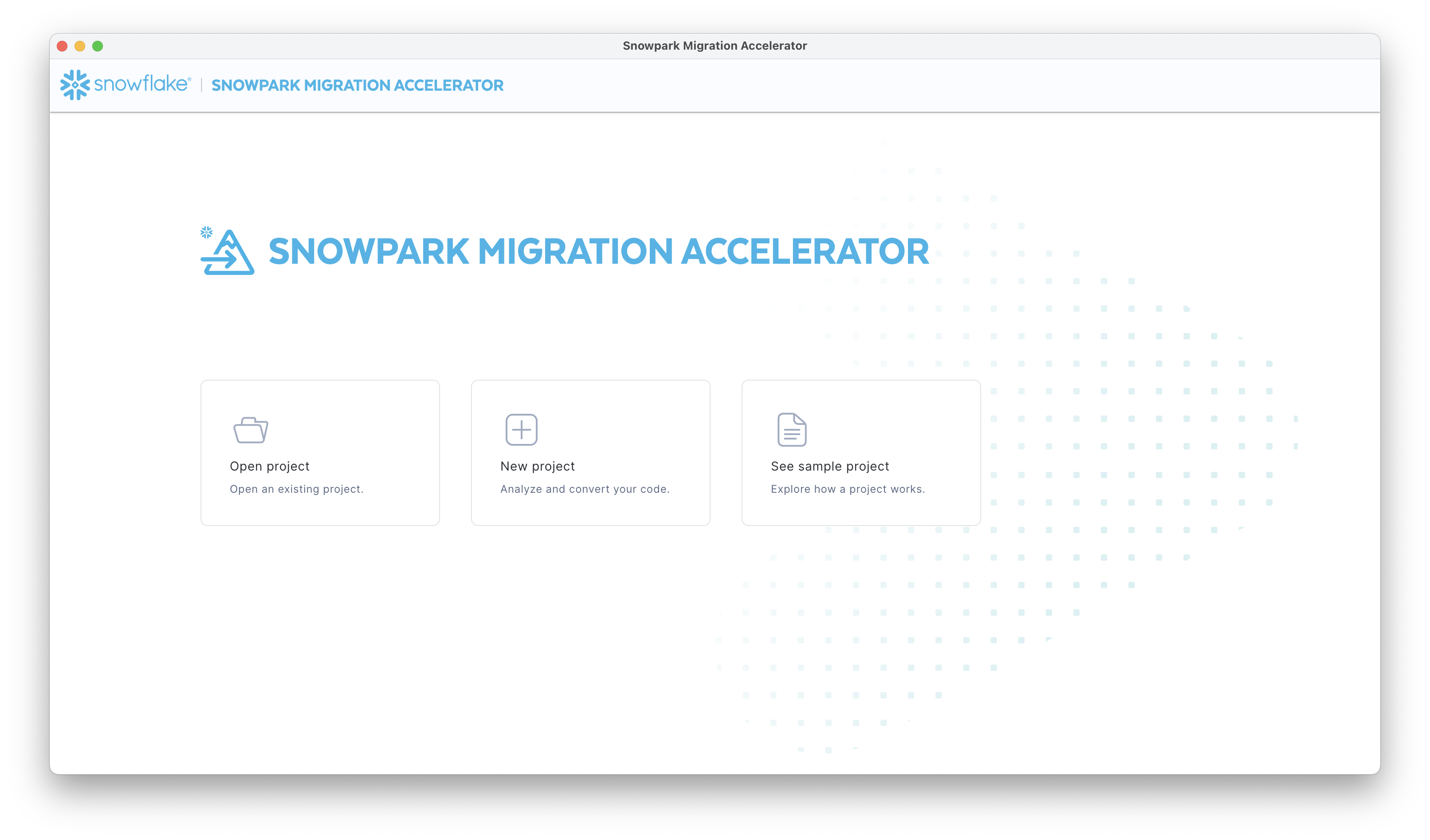
Open project - Browse and select a previously created project file. For more details about opening an existing project, see more information on opening an existing project.
New project - Select this option to create a new project. Learn more about creating a new project.
创建新项目
点击“New Project”按钮将打开“Project Creation”屏幕。
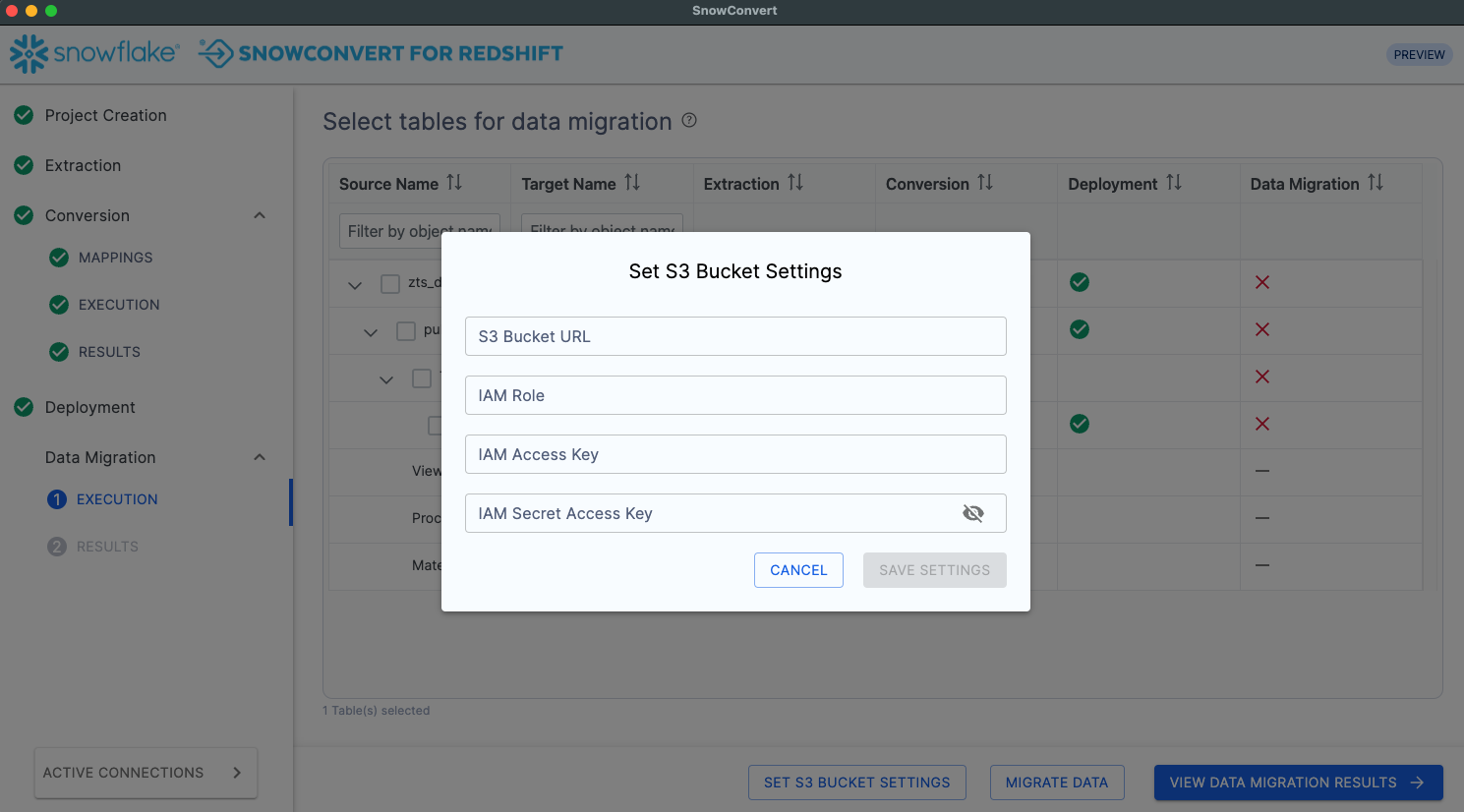
“Project Creation”页面包含您需要填写的多个字段。
Project Name:输入项目的名称。此名称将用于存储您的设置和跟踪多次执行。下文提供了有关项目文件的更多详细信息。
Email Address: Enter your email address to identify yourself as a tool user. This should be the user of the tool, not the owner of the codebase being scanned.
Company Name: Enter the name of the organization whose code you are working with. If you are analyzing your own code, enter your organization's name. If you are working with another organization's code, enter their name. This helps organize projects by organization.
Input Folder: Select the folder containing your source code. Note that SMA will only analyze supported file types.
Output Folder Path: Select the directory where SMA will store output files, including logs, reports, and converted code.
SQL Language: Select either SparkSQL, HiveSQL or Databricks based on your source code. (Optional)
必须填写所有字段才能运行该工具。
After completing your project setup, you have two options:
Click "Save" to save your project and continue to the next step
点击“Cancel”可退出而不保存
Clicking "Cancel" returns you to the main screen. If you choose "Save" your project settings will be saved in a .snowct file. This file allows you to reopen the project later with all your configured settings intact.
Notes on the SMA Project File (.snowct)
The .snowct file is a project configuration file that stores your project settings and assessment history. This file allows you to:
使用相同的配置设置重新运行该工具
访问和查看既往运行产生的评估数据
Each time you click "Save", SMA creates a project file (with a .snowct extension) in the root of your selected output folder.

作为用户,您可以执行以下操作:
Double-click the
.snowctfile to open an existing project在主屏幕上点击“Open Project”打开现有项目
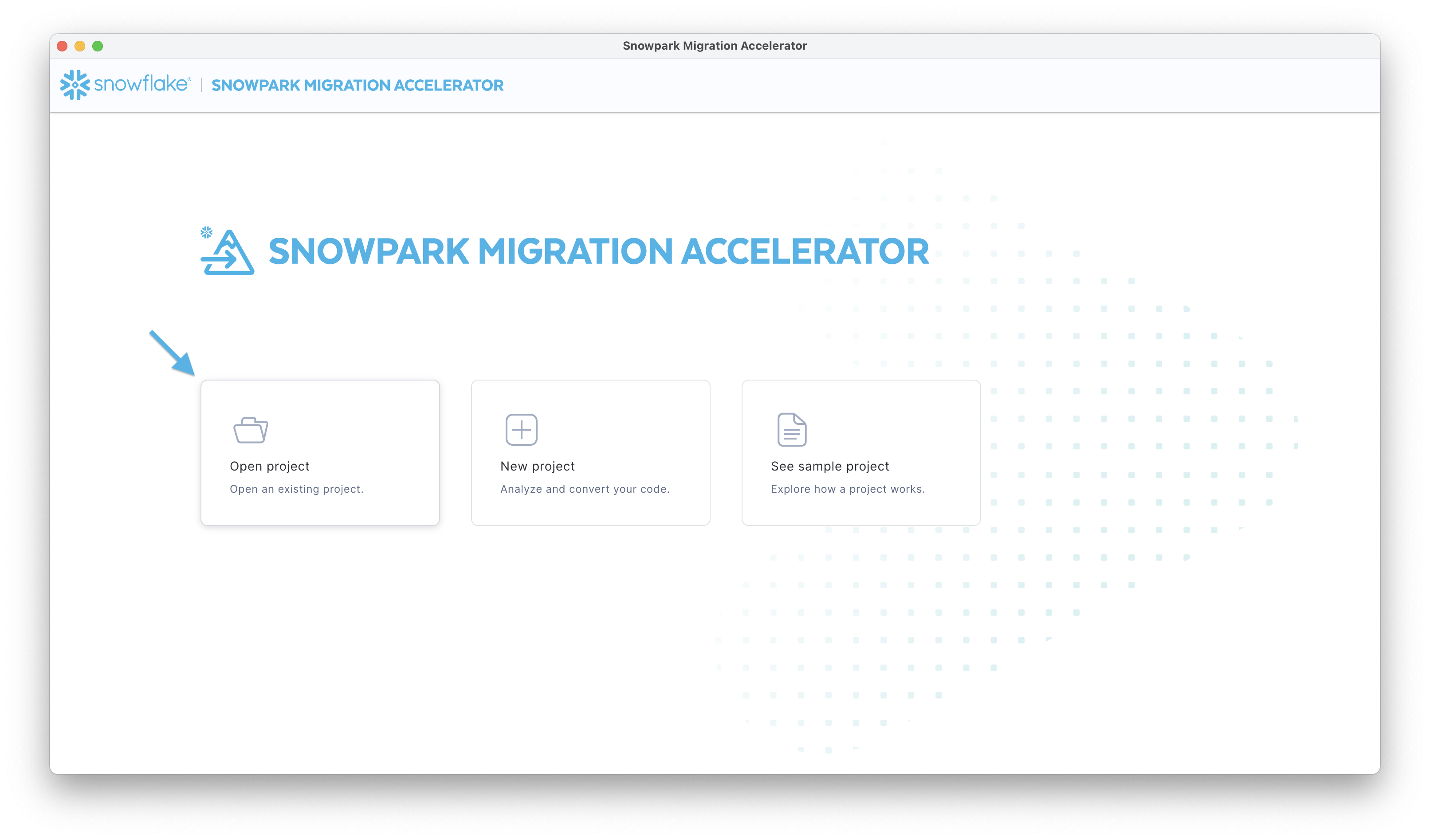
打开项目
From the main screen, click Open Project to launch your file browser. Select a project file with a .snowct extension to open the project home page. This action works regardless of your project's completion status.
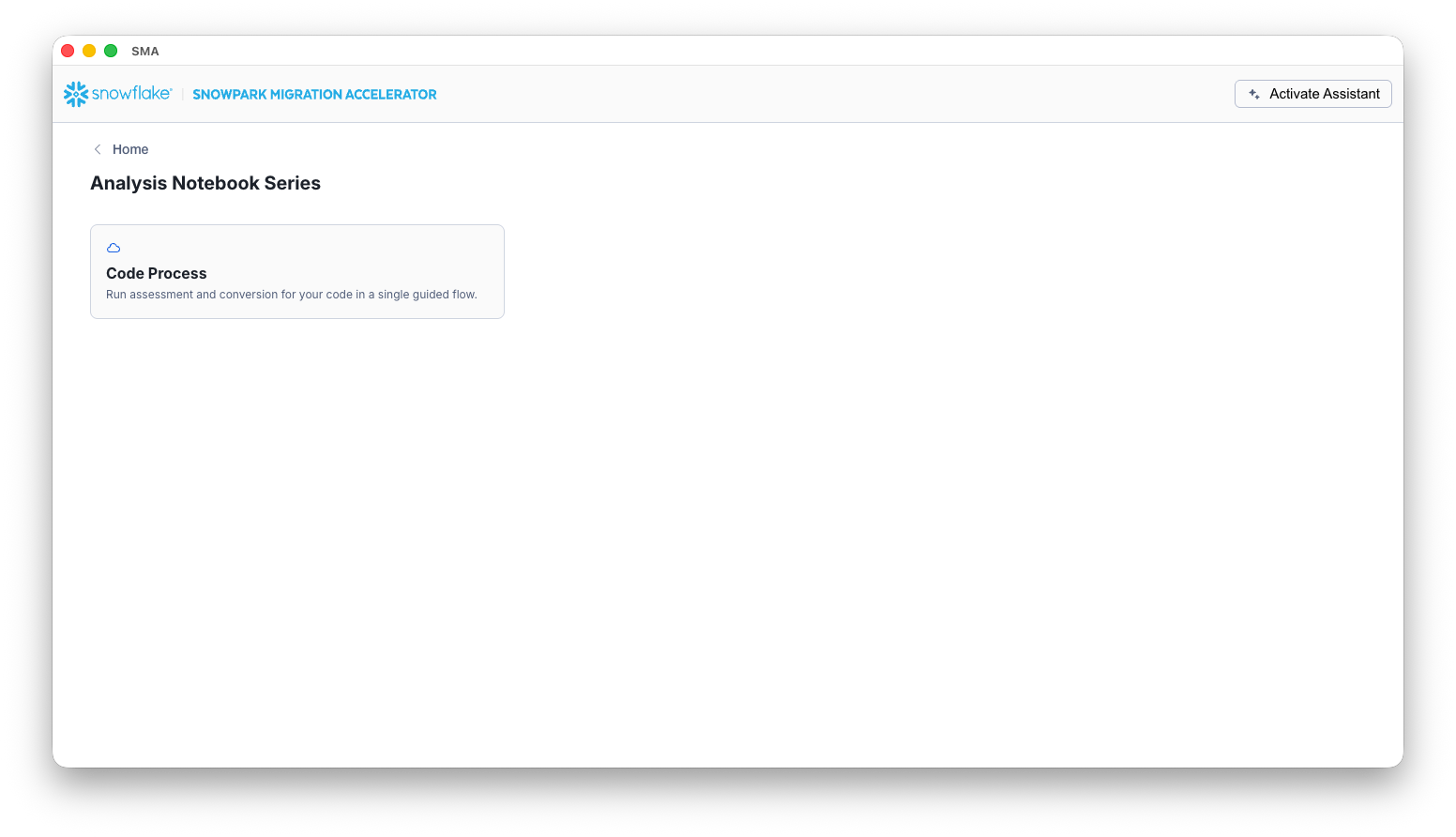
下一节说明使用该应用程序时可用的配置选项和设置。