Openflow BYOC - Set up custom ingress
This topic describes the considerations for and steps required to set up an Openflow BYOC deployment with a custom ingress solution managed within your own AWS account.
Benefits
Custom ingress for Openflow BYOC deployments provides your organization with:
- Stronger security with network-level restrictions that can limit access to only your VPN or private network.
- Full control over the URL and TLS certificate used to access Openflow to meet your security and compliance requirements.
Considerations
With Snowflake managed ingress, Openflow creates the necessary DNS records, public load balancer, and manages the TLS certificate for the Openflow runtimes in your BYOC deployment.
When you enable custom ingress, Openflow will no longer automatically manage external DNS records, will not create a public load balancer automatically, and will no longer manage certificates for the Openflow runtimes. You must manage these resources within your own AWS account.
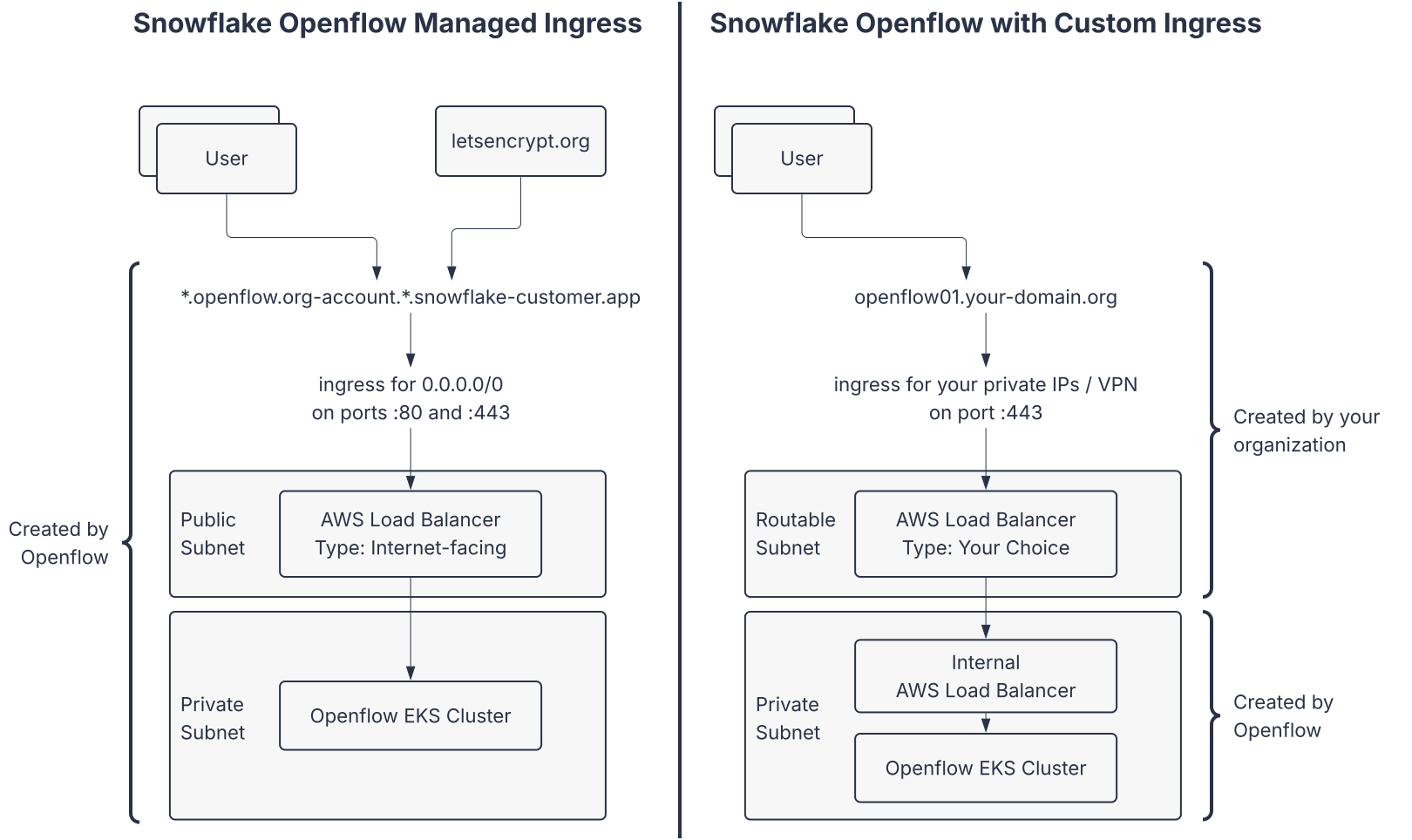
Configure custom ingress in Snowflake Openflow
-
Enable custom ingress during deployment creation.
- During deployment creation, enable Custom ingress and specify your preferred fully qualified domain name (FQDN) in the Hostname field.
- You must be able to manage this DNS record and create a TLS certificate for this FQDN. Do not use a subdomain of
snowflakecomputing.cn. - You must not include the protocol https:// or a trailing slash / in the FQDN.
- For example, if you specify
openflow01.your-domain.org, you will access a runtime named “My Runtime” athttps://openflow01.your-domain.org/my-runtime/nifi/.
-
Download the CloudFormation template. This file has all of the settings required for Openflow to run as your custom ingress domain.
Configure custom ingress in AWS
Note
{deployment-key} represents the Openflow unique identifier applied to cloud resources created and managed by Openflow for a particular deployment.
This is in the DataPlaneKey parameter of the CloudFormation template, also available in Openflow through the View Details menu option for the deployment.
-
Add the following tag to the private subnets for your Openflow deployment:
- Key: kubernetes.io/role/internal-elb
- Value:
1
-
If your private subnets are used by other EKS clusters, you must also tag them with the name of the Openflow cluster. This allows Openflow to create a load balancer alongside other load balancers.
- Key: kubernetes.io/cluster/{deployment-key}
- Value:
1
-
Upload the CloudFormation template. Wait approximately 30 minutes for Openflow to create the internal network load balancer.
- You can find the internal network load balancer in the AWS Console under EC2 » Load Balancers.
- The load balancer will be named
runtime-ingress-{deployment-key}.
-
Obtain the internal IP address of the Openflow-managed AWS internal network load balancer.
- Under EC2 » Load Balancers, navigate to the details page and copy the DNS name of the Load Balancer.
- Log into your agent EC2 instance (identified as openflow-agent-{deployment-key}) and run the command
nslookup {openflow-load-balancer-dns-name}. - Copy the IP addresses of the Openflow-managed AWS internal network load balancer. These are destinations for the target group of the load balancer you will create in a following step.
-
Provision a TLS certificate.
- Obtain a TLS certificate for the load balancer that will handle traffic to the Openflow runtime UIs. You can generate a certificate using AWS Certificate Manager (ACM) or import an existing certificate.
-
Create a network load balancer that will route traffic to the Openflow-managed AWS internal network load balancer.
-
In your AWS account, create a Network Load Balancer with the following configuration:
- Name: We recommend the naming convention
custom-ingress-external-{deployment-key}, where{deployment-key}is the key of your Openflow deployment. - Type: Network Load Balancer
- Scheme: Internal or Internet-facing, depending on your requirements.
- VPC: Select the VPC of your deployment
- Availability Zones: Select both Availability Zones where your Openflow deployment is running.
- Subnets: Select the private subnets of your VPC for an Internal Load Balancer, or the public subnets of your VPC for an Internet-facing Load Balancer.
- Security groups: Select or create a security group that allows traffic on port
443 - Default SSL/TLS server certificate: Import your SSL/TLS certificate
- Target group: Create a new target group with the following settings:
- Target type: IP addresses
- Protocol: TLS
- Port: 443
- VPC: Verify the VPC matches your deployment
- Type the IP address of the internal network load balancer created by Openflow (obtained in the previous step) as the target and select Include as pending below.
- Name: We recommend the naming convention
-
Once the load balancer is created, copy the DNS name for the load balancer to use in the next step.
-
For more information on how to create a network load balancer, see Create a Network Load Balancer (https://docs.aws.amazon.com/elasticloadbalancing/latest/network/create-network-load-balancer.html).
-
-
Create a DNS CNAME record that maps your custom ingress FQDN to the AWS load balancer’s DNS name.
- For detailed DNS configuration instructions in Route 53, see Create records in Route 53 (https://docs.aws.amazon.com/Route53/latest/DeveloperGuide/resource-record-sets-creating.html).
Verification
- The Openflow deployment shows a status of Active in the Deployments page.
- Create a runtime in the Openflow deployment.
- Once the runtime is Active, click on the runtime name or use the View canvas menu option to access the runtime’s UI.
- Openflow directs you to the runtime with the hostname specified during deployment creation. For example,
https://openflow01.your-domain.org/my-runtime/nifi/.
Troubleshooting
The following sections provide troubleshooting steps for common issues with custom ingress. If you are still experiencing issues after performing these checks, file a Snowflake Support case.
Load balancer target health check
The target group for your network load balancer should list the IP addresses of the Openflow-managed internal network load balancer as targets. All of these targets should show as Healthy. If targets are Unhealthy, use the following checks to narrow down where traffic is failing.
-
In the AWS console, open EC2 » Load Balancers.
-
Locate the Openflow-managed load balancer that manages ingress to the Kubernetes cluster. This load balancer is named
runtime-ingress-{deployment-key}. -
Review the target health for that load balancer under the Resource map tab.
-
If the Openflow-managed load balancer is not active or has Unhealthy targets:
- Traffic may be blocked between the Openflow-managed load balancer and the BYOC cluster, or a service inside the cluster may not be ready.
- Generate a diagnostic bundle by running
./diagnostics.shfrom the openflow-agent-{deployment-key} EC2 instance and attach it to a Snowflake Support case.
-
If the Openflow-managed load balancer is active and has healthy targets, check the target health for your load balancer.
-
If your load balancer’s targets are Unhealthy, the path from your load balancer to the Openflow-managed load balancer is the most likely problem:
- Incorrect or stale IP addresses in your target group. The Openflow-managed load balancer exposes multiple IP addresses that can change over time. To get the latest values, run
nslookupwith the DNS name of the Openflow-managed load balancer. Update your load balancer’s targets as necessary. - Security group rules. Confirm that inbound rules on the Openflow-managed load balancer’s security groups allow TCP
443from your load balancer. Traffic can fail if your load balancer can’t reach the Openflow load balancer on port443.
- Incorrect or stale IP addresses in your target group. The Openflow-managed load balancer exposes multiple IP addresses that can change over time. To get the latest values, run
Browser security blocking
Some problems with custom ingress are caused by corporate browser security, firewalls, or web proxies that block or inspect traffic to your custom hostname. Those policies are separate from AWS load balancer configuration. You may find that users can’t open the Openflow UI even when AWS load balancers report healthy targets.
To verify connectivity through the load balancers to the Openflow services:
-
In the AWS console, open EC2 » Load Balancers to get the DNS name of the load balancer that is serving traffic and the TLS certificate for your custom ingress domain name.
- This is not the runtime-ingress-{deployment-key} load balancer.
-
From the openflow-agent-{deployment-key} EC2 instance, verify connectivity through the load balancers to the Openflow deployment. Run the command:
- If the command outputs the expected certificate information and a successful 404 status code response, you have successfully verified connectivity to your Openflow deployment.
- If the command times out or returns an error, create a Snowflake Support case and attach a diagnostic bundle generated by running
./diagnostics.shfrom the Openflow Agent instance.
-
From the Openflow Agent instance, you can also verify the DNS CNAME record for your custom ingress FQDN. Run the command:
- If the command returns the IP addresses of the load balancer that is performing TLS termination for your custom ingress domain name, you have successfully verified the DNS CNAME record.
- If the command returns no results, the DNS CNAME record is not configured correctly. Check the DNS record for your custom ingress FQDN and ensure it points to your load balancer’s DNS name.
If the Openflow Agent connected successfully through your load balancer’s DNS and you have verified the DNS CNAME record, a security policy or firewall is likely blocking traffic from your browser to the Openflow BYOC deployment. Work with your security team to allowlist your custom ingress FQDN.