Compute setup for Snowflake Notebooks in Workspaces
Setting up compute
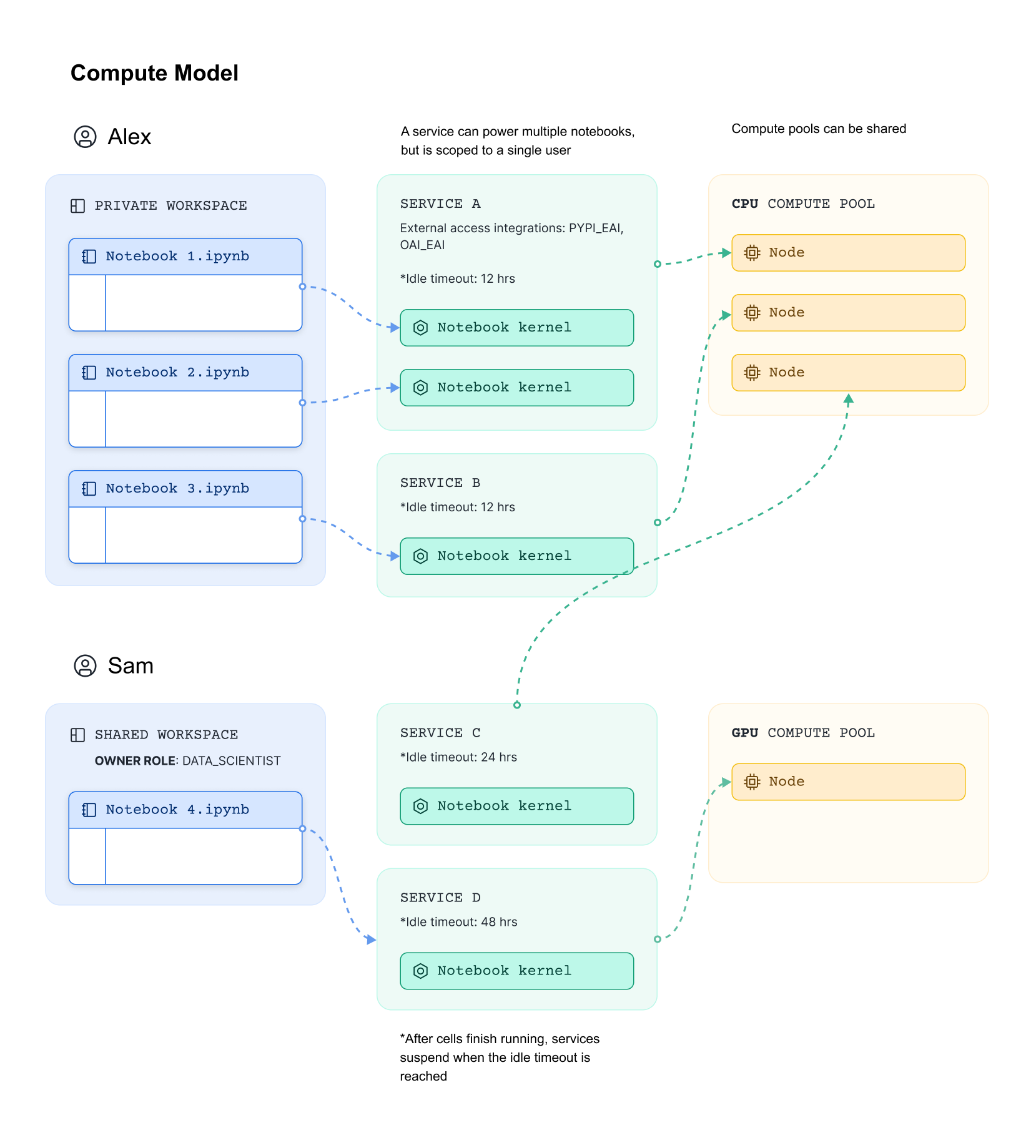
When a user runs a notebook or Python file (.py) in Workspaces, the user creates a Snowflake-managed notebook service to host the notebook kernel and execute code.
When creating a notebook service, users can configure the Python version, Snowflake Container Runtime version, compute pool, idle timeout, external access integrations, and optionally customize the service name.
Each notebook service is scoped to a single user and occupies one node on the selected compute pool. All notebooks and Python files connected to the same service share the compute resources on that node. If a notebook or Python file requires dedicated compute resources, create a separate notebook service and avoid attaching additional notebooks or Python files to it.
For Python-file-specific behavior, see Python files in Workspaces.
Managing a notebook service
Suspend
You can manually suspend a notebook service by clicking Connected, hovering over the service name, and selecting Suspend (pause icon).
Alternatively, you can wait for the service to reach its idle timeout setting and it will suspend automatically. For details on how idle time is calculated, see Idle timeout.
Suspending a service disconnects all notebooks connected to it, clears in-memory states, and removes all packages and variables. Any files created from
code or the terminal in the Workspace file system and the /tmp directory are also removed.
Resume
To resume a suspended service, connect a notebook to it or run a notebook that has previously been connected to it.
Drop
Administrators can drop a notebook service.
To drop a notebook service via SQL:
To drop a notebook service using Snowsight:
- Sign in to Snowsight.
- Select the Connected dropdown.
- Select Manage service to go to the Services & jobs page.
- Select the ellipsis for the service you want to drop, then select Drop.
Editing a notebook service
A notebook service can be updated after being created to change:
- External Access Integrations.
- Runtime version.
- Idle timeout.
Changes to (1) or (2) suspend then restart the service. Changing the idle timeout does not restart the service.
Idle timeout
Each notebook service defines its own idle timeout. The service is suspended when the idle time is reached. Idle time begins as soon as all running cells across all connected notebooks have finished. If multiple notebooks share the same service, idle time starts only when the last notebook becomes idle (no cells running).
By default, notebook services have an idle timeout of 24 hours. You can configure the idle timeout when creating or updating a notebook service to better align with your usage patterns and cost optimization strategies.
Administrator configuration
Notebook service idle timeout
Account administrators can set the NOTEBOOK_VNEXT_IDLE_TIMEOUT_OPTIONS_MINUTES account parameter to control which idle timeout options appear when users create or edit a notebook service.
Set the parameter to a comma-separated string of minutes with no spaces, such as 15,30,60,120,240,480,1440. The first value appears as the pre-selected option in the Idle timeout field. To encourage most users to use a specific timeout, put that value first in the list.
- Minimum value:
15 - Allowed values:
15,30,60,120,240,480,1440,2160,2880,4320 - Default list:
1440,15,30,60,120,240,480,2160,2880,4320
Keep the following in mind when you configure this parameter:
- Only the ACCOUNTADMIN role can set this parameter.
- The parameter is account-level. After you set it, the list applies to all notebook services in the account.
- Existing notebook services aren’t changed unless a user edits the service.
- After you set the parameter, refresh the page to see the updated list. There can be a lag of 5 minutes before the change appears.
The following example sets the idle timeout options to 15, 30, and 60 minutes, with 15 minutes pre-selected:
Compute pool auto suspension
You can configure the AUTO_SUSPEND_SECS parameter for each compute pool. Once all services on the compute pool (including notebook and other services) are idle, the compute pool is suspended according to the value set in AUTO_SUSPEND_SECS.
Credit usage
Notebook execution can incur credits from two sources:
-
Compute pool: Powers the notebook kernels and Python processes.
Credits accrue while the notebook service is in the RUNNING state until it is manually suspended, or suspended due to idle timeout. All notebooks connected to the same service share the compute pool credits consumed.
-
Query warehouse: Used for SQL queries or Snowpark pushdown compute triggered by the notebook.
Credits accrue only when SQL queries or Snowpark pushdown compute operations run on the warehouse. To optimize costs, enable auto-suspend on the query warehouse. Notebooks that do not invoke any SQL queries or Snowpark pushdown compute incur no query warehouse credits.
For more information on cost optimization and maximizing value, see Optimizing cost.
Governance on notebook services
Notebook services are personal to each user, used exclusively for running notebooks, and located within the user’s Personal Database (PDB).
Privileges
Ownership
The OWNER_ROLE is NULL because Snowflake manages these services.
User privileges
The creating user is granted the following privileges:
- USAGE
- OPERATE
- DROP
- MONITOR
Administrator privileges
ACCOUNTADMIN is granted the following privileges:
- USAGE
- OPERATE
- DROP
This allows full management and oversight of all notebook services.
Administrator control and cost monitoring on compute pools
Administrators manage user access and costs primarily through the compute pools associated with notebook services.
A user’s role must have the USAGE privilege on a compute pool to create a notebook service and run notebooks. In addition, the compute pool must
allow the NOTEBOOK workload type through the ALLOWED_SPCS_WORKLOAD_TYPES parameter. The default value for this parameter is
ALL, which includes NOTEBOOK.
To learn more about compute pool workloads, see Snowpark Container Services: Working with compute pools.
Disable notebook execution
Administrators can restrict notebook execution in Workspaces in multiple ways:
Remove USAGE on the compute pool
Removing the USAGE privilege from a role on a compute pool prevents that role from using that compute pool, including running notebooks.
Restrict workload types on all compute pools
Administrators can restrict notebook execution while still permitting other workloads using two account-level parameters. This will affect all roles in the account.
- Exclude
NOTEBOOKfrom theALLOWED_SPCS_WORKLOAD_TYPESparameter. - Set
NOTEBOOKas theDISALLOWED_SPCS_WORKLOAD_TYPESparameter.
Any role that has USAGE on the compute pool can still run other allowed types of workloads as specified by the parameters.
Monitor costs
Administrators can monitor consumption per compute pool. Snowflake recommends provisioning a unique compute pool for each role to view role-level consumption. To manage spend, administrators can apply budgets on specific compute pools.
View notebook-managed services
Use the SHOW SERVICES command:
Service maintenance
Notebook services are a type of Snowpark Container Services and require periodic maintenance to remain secure and up to date. Maintenance typically takes about five minutes and suspends and restarts the notebook service. See Managing a notebook service for details on workload impact.
After a notebook service enters the RUNNING state (whether newly created or resumed after being in SUSPENDED state), it is guaranteed
not to be disrupted for seven calendar days (168 hours) due to service maintenance. Seven days after creation, the service may be suspended for mandatory
maintenance.
Multi-node distributed training support (with Snowflake Container Runtime 2.3 or above)
This notebook is optimized for Snowflake Container Runtime 2.3 or above, which introduces support for multi-node clusters. This allows you to scale your ML workloads (like PyTorch, XGBoost, and LightGBM) across multiple nodes for faster training.
For more information on running ML workloads on multi-node clusters, see Container Runtime on multi-node clusters.