Get started with Pipeline Builder
This walkthrough builds a small pipeline that runs two notebooks, one after the other, on a schedule. By the end, you’ll have deployed a task graph and run it.
Before you start, make sure you have the prerequisites and privileges that Pipeline Builder needs.
Step 1: Create a pipeline
- In Snowsight, open a workspace.
- On the workspace’s Home tab, select Pipeline Builder. You can also select Create in the file explorer, and then select Pipeline Builder.
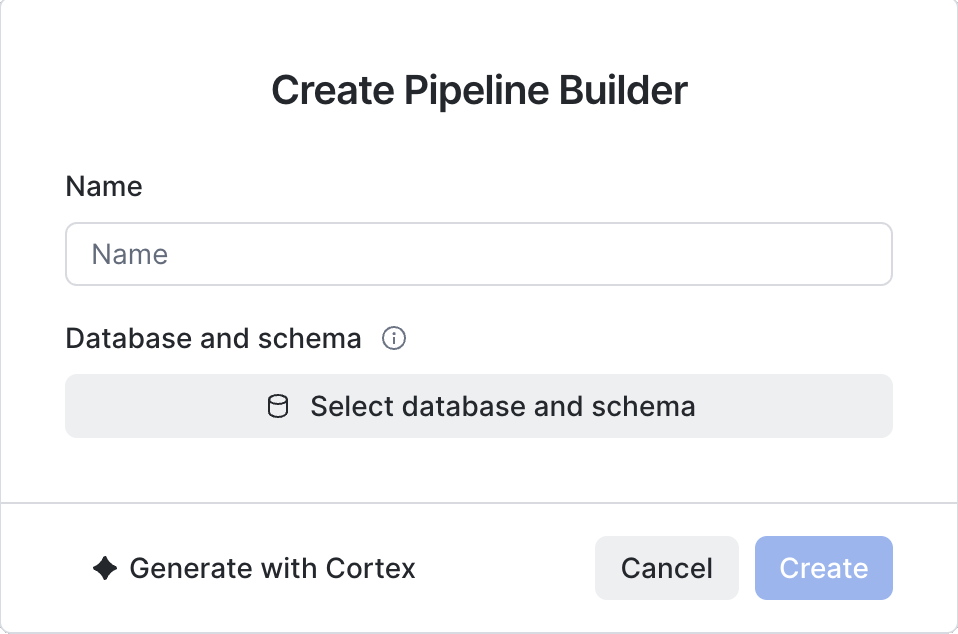
- In the Create Pipeline Builder dialog, enter a Name for the pipeline, and then select the Database and schema where the pipeline’s DCM project is created.
- Select Create.
Pipeline Builder creates a project folder in your workspace and opens an empty canvas. The folder contains a manifest.yml file, a
definition file such as pipeline.yml, and a sources/ folder.
Note
CoCo for Pipeline Builder is coming soon. When it’s available, select Generate with Cortex in the dialog, describe the pipeline in the Prompt field, and then select Generate. For more information, see Use CoCo to build a pipeline.
Step 2: Add your code to the project
This walkthrough uses two notebooks. The first one runs before the second.
- If you already have notebooks you’d like to use, upload them to the project folder, or move them in from elsewhere in the workspace.
- If you don’t, create two simple notebooks in the project folder, or ask CoCo to write them for you.
Don’t put the files in the sources/ or out/ folders. Pipeline Builder can’t turn files in those folders into tasks.
Step 3: Add the first task
Drag the first notebook from the file explorer onto the canvas.
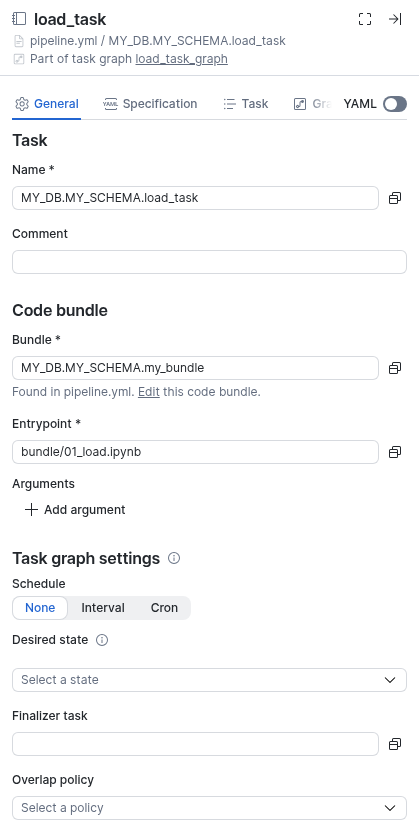
Pipeline Builder adds a Notebook task that runs the notebook, creates a Code Bundle for the project’s code if one doesn’t exist yet, and fills in a default runtime, compute pool, and warehouse. The task’s settings drawer opens.
In the drawer, check the following on the General tab:
- Name: the fully qualified name of the task, for example
my_db.my_schema.my_first_task. - Entrypoint: the file the task runs.
On the Specification tab, check the Runtime version, Compute pool, and Query warehouse, and change them if needed.
You can also select Create on the canvas toolbar and then select Notebook / Python or From file to add a task without dragging.
Step 4: Add a second task and create a task graph
Drag the second notebook onto the right side of the first task’s card. When the Run After hint appears, drop the file.
Pipeline Builder adds a task that runs after the first task, connects the two cards, and creates a task graph that contains both tasks. The first task becomes the graph’s root.
You can also hover over the first task’s card and select + on its outgoing connector, or drag from the outgoing connector of one card to the incoming connector of another.
Step 5: Schedule the task graph
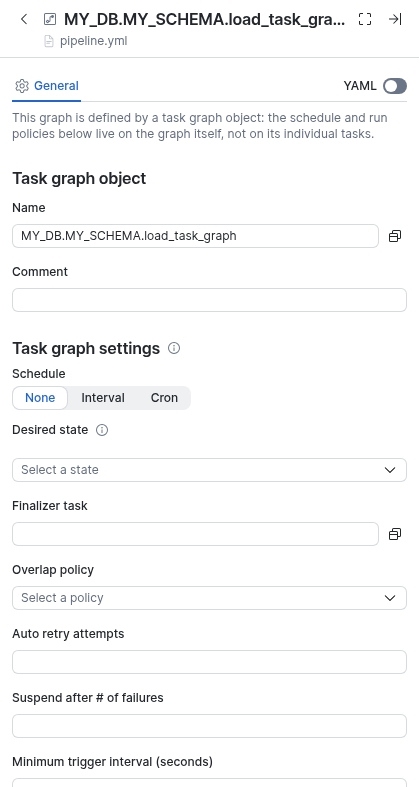
- Select Objects on the canvas toolbar, and then select Task graphs.
- Select the task graph that Pipeline Builder created.
- Under Task graph settings, for Schedule, select Interval or Cron, and then enter the schedule. For example, select
Cron and enter
0 6 * * *with your time zone to run the graph every day at 6:00 AM. - For Desired state, select Resumed so that the graph starts running on its schedule after you deploy it. Leave it as Suspended if you only want to run the graph manually for now.
- Under Task defaults, select the Warehouse that tasks in the graph use when they don’t set their own.
You can also open these settings from any task in the graph: select the task, select the Graph tab, and then select Edit graph settings.
Step 6: Deploy the pipeline
-
Select Deploy in the upper-right corner of the canvas. If you don’t see it, collapse the workspace’s bottom pane.
Pipeline Builder starts a plan, which shows you what it will create, alter, or drop for you.
-
In the Review planned changes dialog, review the changes. This first deployment creates the Code Bundle, both tasks, and the task graph.
-
Select Deploy.
When the deployment finishes, the Deployed Project button appears next to Deploy.
Step 7: Run the task graph
If you set Desired state to Resumed, the graph runs on its schedule. To run it now:
- Select Deployed Project. The DCM project opens in Snowsight on the Objects tab.
- Select the task graph to open its details page. If the tasks aren’t part of a task graph object, select one of the tasks instead.
- Select the Graph tab, and then select the Run Task Graph icon.
- To see the result, select the Overview tab, which shows the graph’s run history. On a task’s details page, select the Run History tab instead.
You can also run the graph with SQL:
For more ways to run and monitor a pipeline, see Deploy, run, and monitor pipelines.
Next steps
- Add SQL tasks, ML Jobs, and branches to the graph. See Build and configure pipelines with Pipeline Builder.
- Set retries and notifications. See Configure task graph settings and task defaults.
- Branch the graph and handle failures with conditions. See Run tasks conditionally.
- Deploy the same pipeline to a production target. See DCM deployment details.