SQL Playground in CoCo Desktop
The SQL Playground is an embedded SQL scratch editor that lives in the Agent Manager right-hand-side (RHS) panel of CoCo Desktop. It gives you a lightweight surface for authoring, running, and iterating on ad-hoc SQL against your active Snowflake connection without leaving the chat view.
The playground is organized into sheets that are scoped to the workspace that owns the
conversation you’re viewing. Each workspace keeps its own set of .sql worksheets in a sheets
sidebar, where you can create new sheets, rename them, delete them, and rearrange them with
drag-and-drop. When you reopen a workspace, its sheets and your last cursor position and layout
come back with them.
Use the playground to draft queries while you talk to the agent, run statements that the agent has proposed, or experiment with results that you plan to feed back into your workflow.
Note
The SQL Playground is a transient scratch surface, not a workspace file. For full editor features (multi-file editing, source control, dirty-state tracking against disk), use the Open in Editor action to pop the buffer into a regular editor tab.
Prerequisites
- CoCo Desktop installed and signed in.
- An active Snowflake connection bound to the chat conversation. The playground submits queries using the same connection the agent uses for that conversation.
- A chat conversation open in CoCo Desktop. Sheets and query history are scoped to the workspace that owns the conversation you’re viewing.
Open the SQL Playground
The playground is one of the panels in the Agent Manager RHS area. To open it:
- Click the SQL Playground icon in the Agent Manager RHS toolbar, or
- Run the Open SQL Playground command from the Command Palette, or
- Let the agent open it for you. When a tool produces SQL, you can click Open in SQL Playground on the result to push that query into the editor.
The panel slides in alongside the chat. Switching to a conversation in a different workspace swaps in that workspace’s sheets; switching back restores the previous set.
Anatomy of the panel
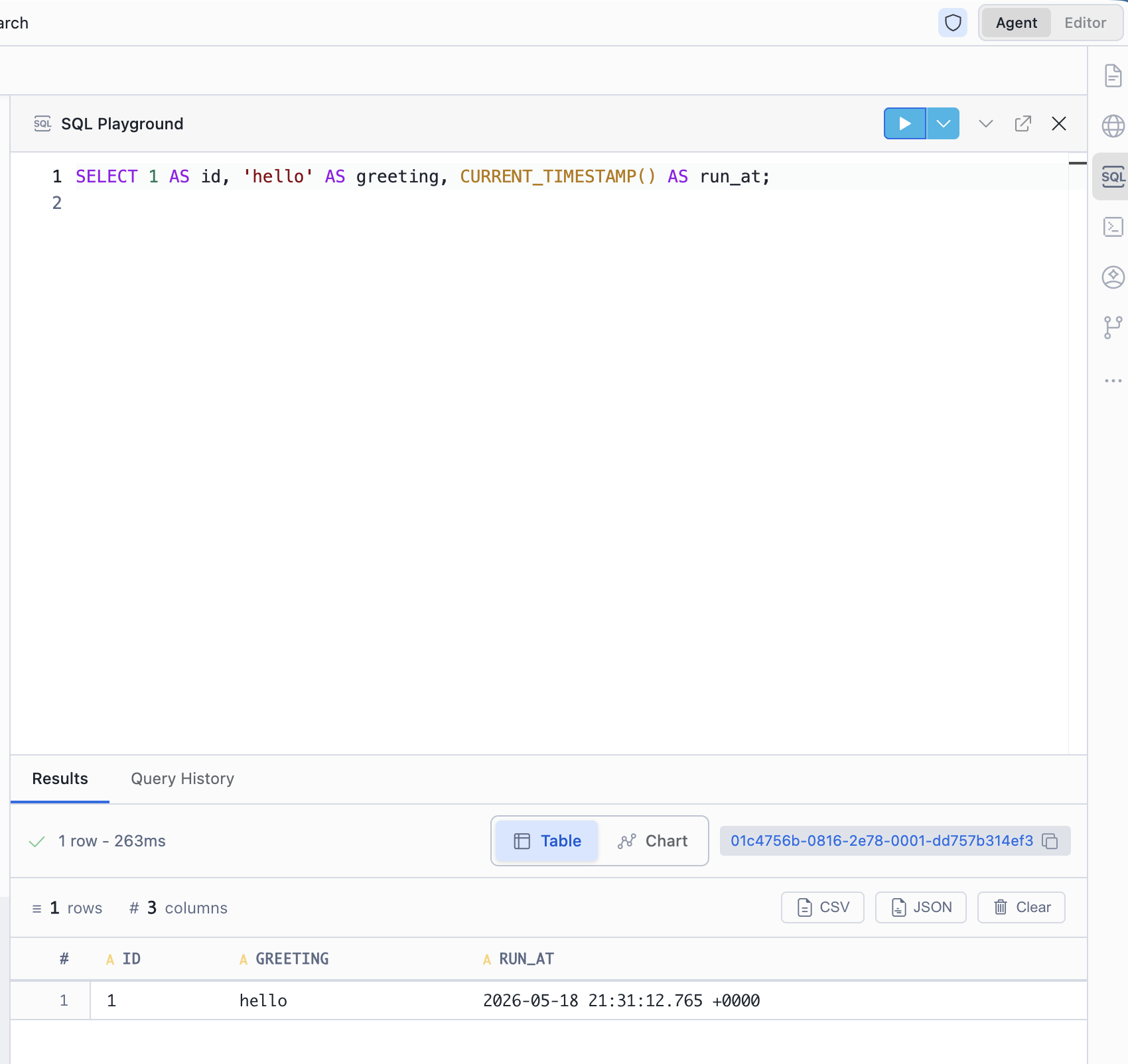
The SQL Playground panel has four main areas:
-
Toolbar at the top, containing:
- Run button — executes the SQL statement at the cursor (⌘Enter on macOS, Ctrl+Enter on Windows/Linux).
- More Run Options dropdown — currently exposes Run All, which executes every statement in the buffer top-to-bottom.
- Hide Results Panel / Show Results Panel toggle — collapses or restores the results pane. Your previous split ratio is remembered.
- Open in Editor — pops the buffer out into a regular workspace editor tab with the suggested name
SQL Playground.sql.
-
Editor — a Monaco-based SQL editor with autocomplete, suggestions, snippets, bracket matching, and the standard right-click context menu. The editor is registered against the SQL language so keyword and identifier suggestions are available out of the box.
-
Results pane — tabbed view at the bottom with Results and Query History tabs. A horizontal sash between the editor and the results pane lets you resize the split.
-
Sheets sidebar — a collapsible tree of the current workspace’s
.sqlsheets. Toggle it from the top toolbar. Create a new sheet, rename or delete an existing one, and drag and drop sheets to organize them. Selecting a sheet loads it into the editor.
Running SQL
The playground supports the same execution surfaces you’d expect from a Snowflake worksheet:
- Run statement at cursor — press ⌘Enter (macOS) or Ctrl+Enter (Windows/Linux), or click Run. The playground detects the statement under the cursor (using semicolon-delimited boundaries) and submits only that statement.
- Run All — from the More Run Options dropdown, executes every statement in the buffer in order. Useful for setup scripts or for running an entire draft end to end.
- Cancel a running query — while a query is in flight, the Run button switches to a cancel state. Click it to abort the in-flight statement.
- Switch view modes — once results land, toggle between Table and Chart view from the results-pane controls. Chart view uses the same renderer the agent uses to visualize tool results.
Tip
If a query is taking a long time to return, you can collapse the results pane to keep editing, then reopen it. Cancelling and re-running is safe; the playground does not retain partial results from a cancelled execution.
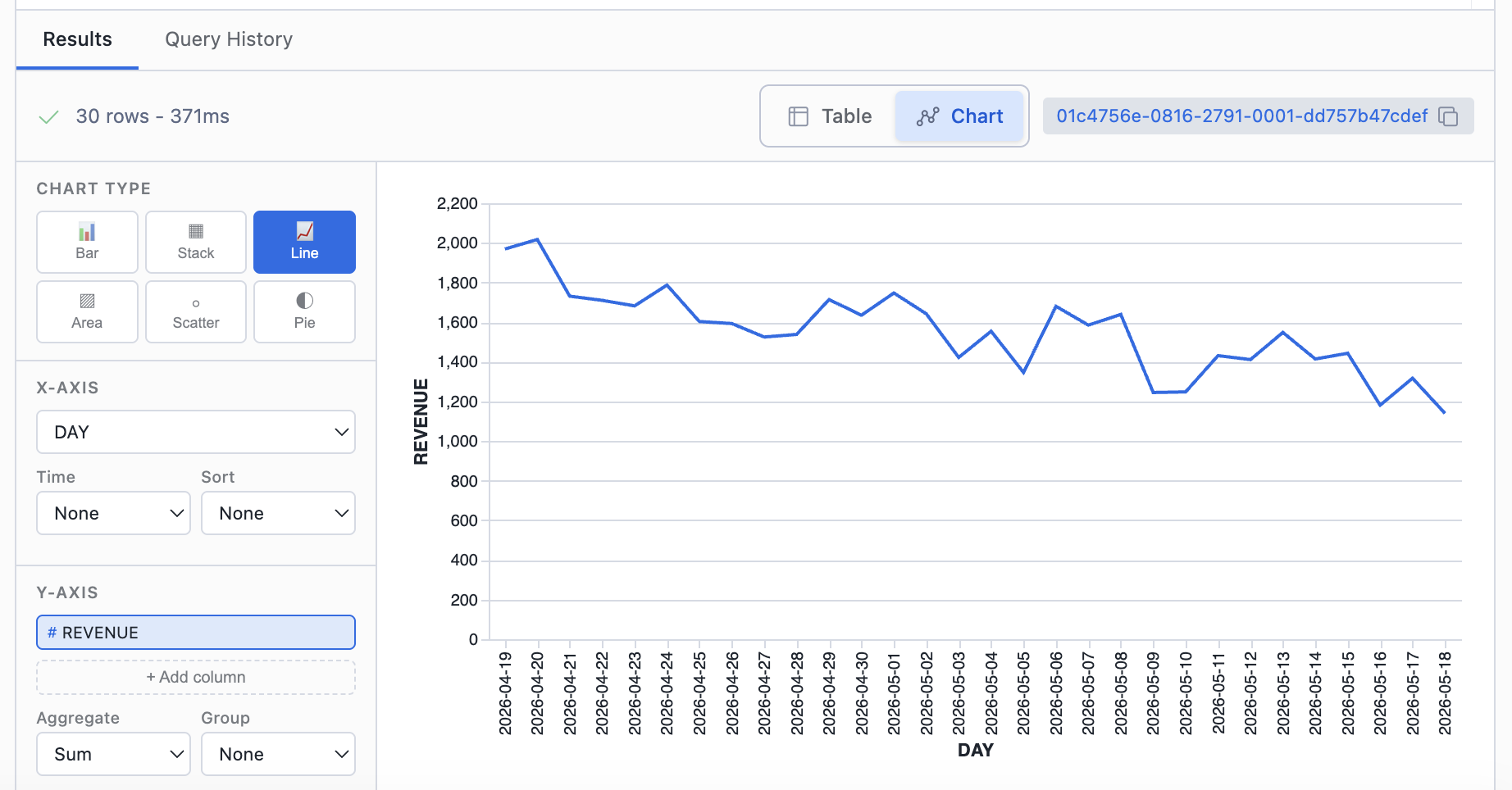
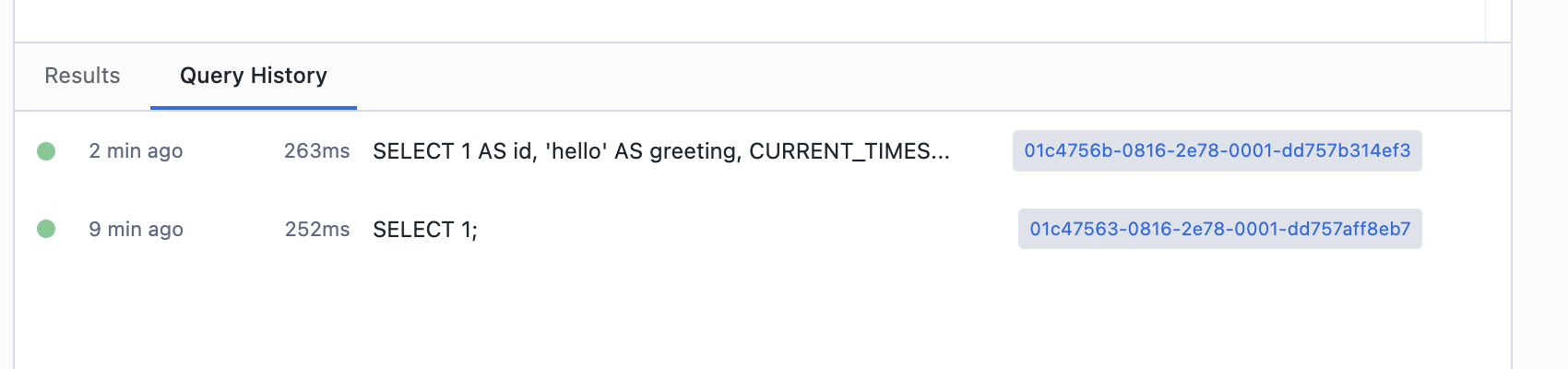
Query history
The Query History tab lists previous executions for the current workspace, sourced from the SQL results service. The list refreshes while the panel is visible, so completed queries appear shortly after they finish.
Selecting an entry shows its result in the same renderer used in the Results tab, with the same table/chart view options. This is the easiest way to revisit a query you ran earlier without re-executing it.
Persistence
The playground persists your work across sessions in two places:
- Sheet files on disk. Each workspace has its own sheets directory under
~/.snowflake/cortex/sql/<workspace-id>/. A new sheet starts as an in-memory buffer; the first time you run it, CoCo materializes it on disk asUntitled-N.sqland auto-saves on edit after that. The editor uses the URI schemesql-playground:internally, but each sheet is a regular UTF-8 SQL file you can read or back up with any tool. - Lightweight UI state. Per-sheet cursor position, the editor/results split ratio, the active tab, and whether the results pane is collapsed are remembered so each workspace restores its own layout.
Note
Deleting a sheet from the sidebar removes its file. To recover or back up a draft outside
of CoCo, look under ~/.snowflake/cortex/sql/ for the workspace’s sheets directory.
Open in Editor
Click Open in Editor in the toolbar to move out of the playground and into a regular
editor tab. CoCo suggests the filename SQL Playground.sql and opens the buffer with
the full editor experience: source control integration, save-as, multi-cursor, formatters, and so on.
The playground keeps its own copy, so opening in editor does not detach the active sheet; it just gives you a richer editing surface for the same SQL when you need it.
Agent Fix-it button
When a SQL error occurs in the playground or in an agent-generated SQL result, a Fix button appears next to the error message. Clicking it sends the failing query and the error to the agent, which rewrites the SQL and presents the corrected version as an inline diff. Accept the rewrite with Keep or discard it with Undo.
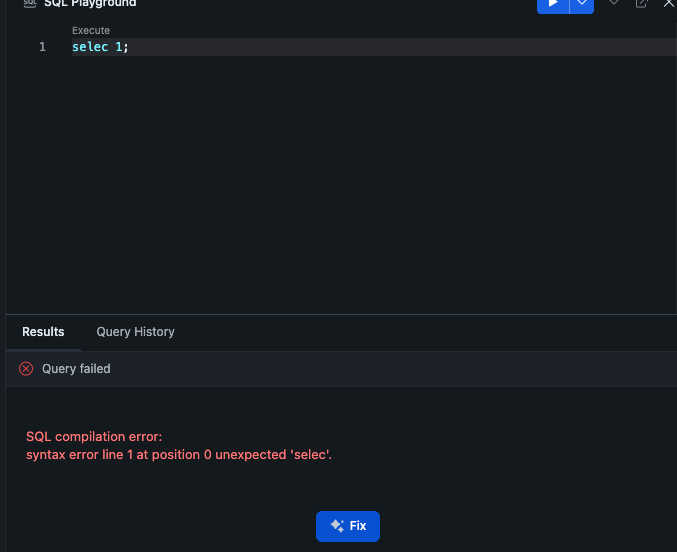
The Fix-it button works in both the SQL Playground and in Editor view when SQL files are open.
Agent integration
Tools that the agent runs can push SQL into the playground for you. When a tool result includes a SQL statement, an Open in SQL Playground action appears on the result. Clicking it loads the SQL into the playground (creating the panel if it isn’t open yet) and brings the editor into focus.
Settings reference
| Setting / path | Description |
|---|---|
~/.snowflake/cortex/sql/<workspace-id>/ | Sheets directory for a workspace. Holds the workspace’s auto-saved .sql sheets (for example, Untitled-1.sql). |
sql-playground: | URI scheme used for the in-memory editor model backing the playground buffer. |
| Run keybinding | ⌘Enter on macOS, Ctrl+Enter on Windows/Linux. Runs the statement at the cursor. |
Troubleshooting
“No active connection” or queries fail before reaching Snowflake
The playground submits queries using the connection bound to the current chat conversation. Make sure a Snowflake connection is selected for the conversation; if you switched accounts recently, reopen the conversation or set the connection from the chat header before running.
Results pane stays empty after pressing Run
- Confirm your cursor is on a non-empty SQL statement. Run targets the statement at the cursor, so an empty line yields nothing to execute.
- Try Run All from the More Run Options dropdown to execute the entire buffer.
- Check the Query History tab; if the run is recorded there with an error, the message will explain why no results were rendered.
A query is stuck or taking too long
Click the Run button while a query is in flight to cancel it. If the cancel does not return promptly, the query may already be executing on Snowflake; you can also cancel it from Snowsight or another client connected to the same warehouse.
I lost my draft after deleting a sheet or conversation
Removing a conversation from the chat does not delete your sheets, which are scoped to the
workspace. If you deleted a sheet from the sidebar, its file is removed; otherwise look under
~/.snowflake/cortex/sql/ for the workspace’s sheets directory and copy the contents into a
new sheet or editor.