BigQuery
Before you start
To connect BigQuery to Horizon Catalog, you will need…
- Admin access to the Google Cloud project that contains the data you want to catalog.
Complete the following steps to enable metadata, lineage, and popularity of your BigQuery datasets in Horizon Catalog.
1. Create a service account
Open the Google Cloud console Service accounts (https://console.cloud.google.com/iam-admin/serviceaccounts) page and select the project that contains the data you want to catalog.
Select + Create service account and enter a name and description. For example:
- Service account name:
Horizon Catalog SVC - Service account description:
Service account used to connect Horizon Catalog to Google BigQuery
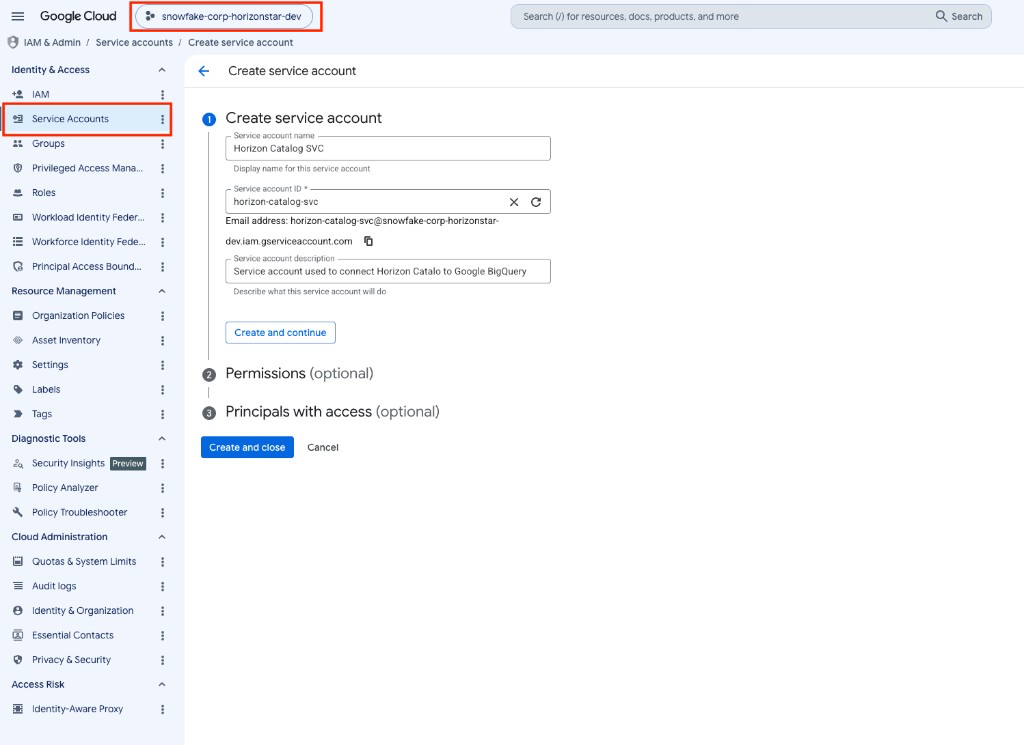
Select Create and continue, then grant the following roles to the service account:
- BigQuery Job User
- BigQuery Metadata Viewer
- BigQuery Resource Viewer
- BigQuery Data Viewer: Optional. Without this role, Horizon Catalog can’t show detailed table information such as table size and row count.
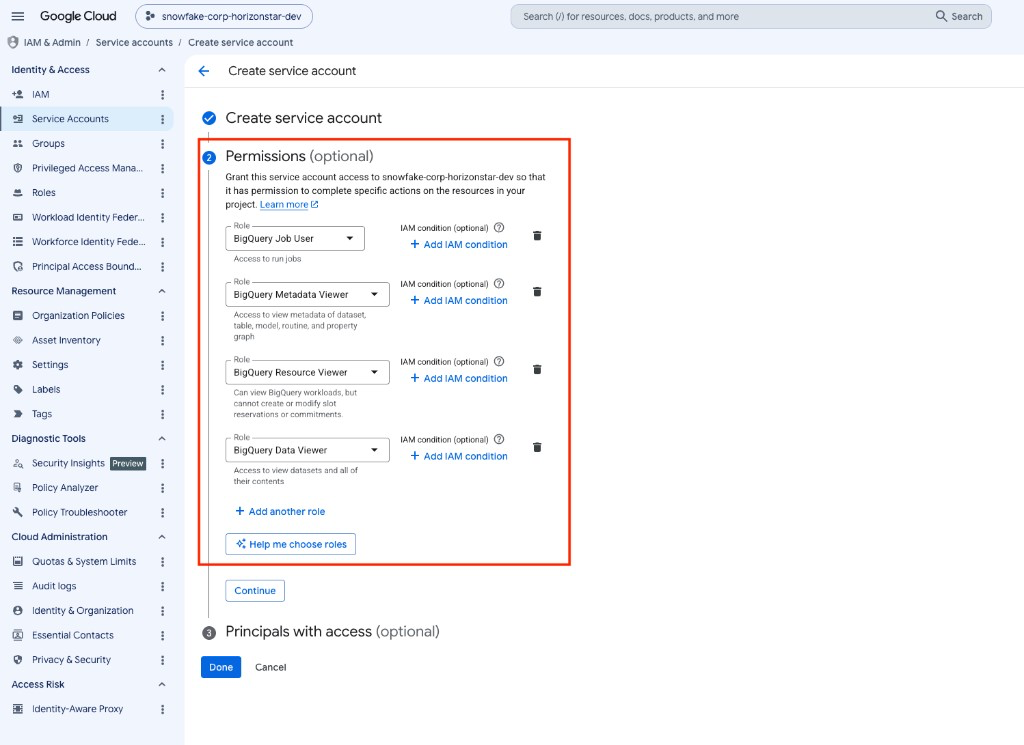
Select Done.
Add more projects
To catalog datasets from more than one Google Cloud project with the same service account, grant that service account access to each additional project:
- In the project where you created the service account, go to IAM & Admin > Service accounts and copy the service account email.
- In each additional project, go to IAM & Admin > IAM and select Grant access.
- Enter the service account email you copied in the first step, then grant it the same roles you assigned when you created the service account.
2. Create a JSON key
In the Service accounts list, select the service account you created.
Open the Keys tab and select Add key > Create new key.
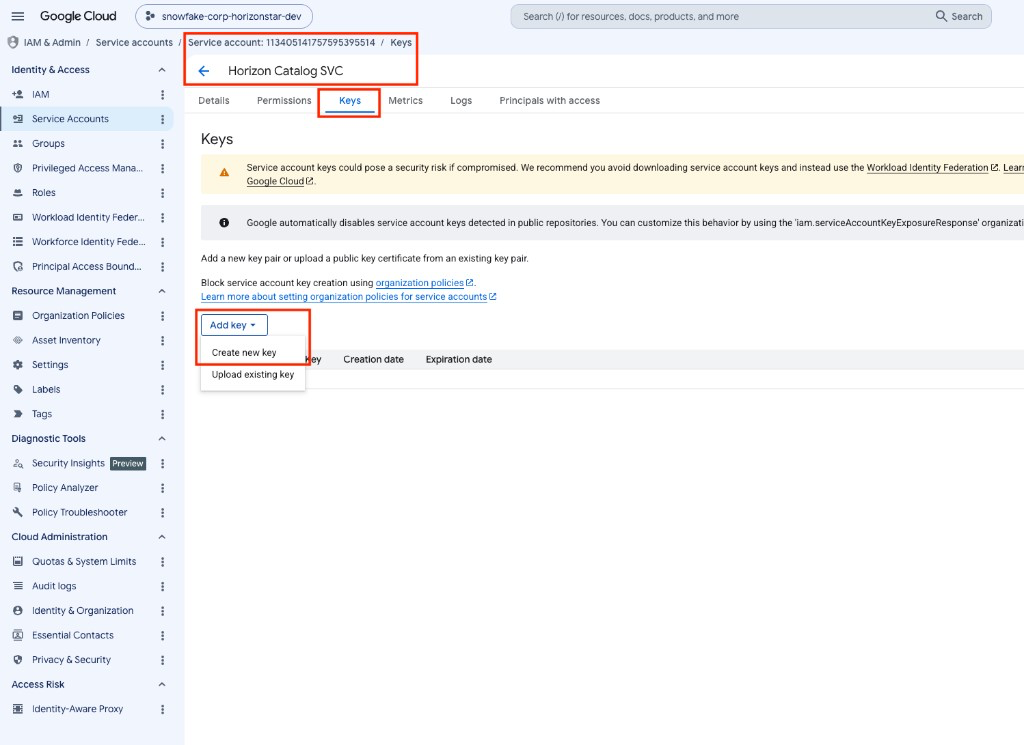
Leave the Key type as JSON and select Create. The key file downloads to your computer.
Warning
The JSON key file grants access to your BigQuery data. Store it securely and don’t share it. You upload this file to Horizon Catalog in the next step.
3. Create the BigQuery connection
-
In Snowflake, open Catalog > Connections and select BigQuery from the Metadata connections section.
-
Fill out the setup form with the information as follows.
- Display Name: The default is
BigQuery, but you can override it if you want. - Service account key: Upload the JSON key file you downloaded in Step 2. Horizon Catalog reads the project ID and client email from the key, so you don’t need to enter them separately.
- Snowflake Database and Snowflake Schema: The database and schema in your Snowflake
account where Horizon Catalog stores the connector metadata. The defaults are
CONNECTORSandMETADATA.
- Display Name: The default is
4. Choose databases and schemas
After you create the connection, continue to the Load data step and select the databases and schemas you want to load.
Note
Horizon Catalog only reads metadata and generates lineage for the databases and schemas you load. Load all of the data for which you expect to see lineage. You can change the loaded databases and schemas later by reconfiguring the data source.
Select the databases and schemas, then complete the wizard. Your metadata starts loading automatically. Popularity and lineage take 24 to 48 hours to fully generate.
Connection security
All communication between Horizon Catalog and BigQuery uses HTTPS (TLS 1.2 or higher). Authentication uses a Google Cloud service account key, which is stored as an encrypted secret. No additional encryption configuration is required.
For more details, see Security and data protection.