Tutorial 3: Build a PDF chatbot with Cortex Search
Introduction
This tutorial describes how to build a chatbot from a dataset of PDF documents using Cortex Search. In Tutorial 2, you learned how to build a chatbot from text data that was already extracted from its source. This tutorial walks through an example of extracting that text from the PDFs using a basic Python UDF, then ingesting the extracted data into a Cortex Search Service.
What you will learn
- Extract text from a set of PDF files in a stage using a Python UDF.
- Create a Cortex Search Service from the extracted text.
- Create a Streamlit-in-Snowflake chat app that lets you ask questions about the data extracted from the PDF documents.
Prerequisites
The following prerequisites are required to complete this tutorial:
- You have a Snowflake account and user with a role that grants the necessary privileges to create a database, tables, virtual warehouse objects, Cortex Search Services, and Streamlit apps.
Refer to the Snowflake in 20 minutes for instructions to meet these requirements.
Step 1: Setup
Get the PDF data
You will use a sample dataset of the Federal Open Market Committee (FOMC) meeting minutes for this tutorial. This is a sample of twelve 10-page documents with meeting notes from FOMC meetings from 2023 and 2024. Download the files directly from your browser by following this link:
- FOMC minutes sample
The complete set of FOMC minutes can be found at the US Federal Reserve’s website (https://www.federalreserve.gov/monetarypolicy/fomccalendars.htm).
Note
In a non-tutorial setting, you would bring your own data, possibly already in a Snowflake stage.
Create the database, tables, and warehouse
Execute the following statements to create a database and a virtual warehouse needed for this tutorial. After you complete the tutorial, you can drop these objects.
Note
- The
CREATE DATABASEstatement creates a database. The database automatically includes a schema named PUBLIC. - The
CREATE WAREHOUSEstatement creates an initially suspended warehouse.
Step 2: Load the data into Snowflake
First create a Snowflake stage to store the files that contain the data. This stage will hold the meeting minutes PDF files.
Note
The directory and encryption are configured for generating presigned_url for a file. If you don’t need to generate presigned_url, you can skip these configurations.
Now upload the dataset. You can upload the dataset in Snowsight or using SQL. To upload in Snowsight:
- Sign in to Snowsight.
- In the navigation menu, select Catalog » Explorer.
- Select your database
cortex_search_tutorial_db. - Select your schema
public. - Select Stages and select
fomc. - On the top right, Select the + Files button.
- Drag and drop files into the UI or select Browse to choose a file from the dialog window.
- Select Upload to upload your file.
Step 3: Parse PDF files
In this step, we’ll extract raw text from PDFs and then split it up into chunks for ingestion into the search service.
First, we will use the Parsing documents with AI_PARSE_DOCUMENT function to extract the text and layout
information from the PDFs into a new table, RAW_TEXT.
Then, we will use SPLIT_TEXT_MARKDOWN_HEADER to
split the documents up into chunks of maximum size 2000 characters each, using the top two markdown header levels as chunk boundaries.
We’ll insert the chunks into a new table DOC_CHUNKS.
Step 4: Create search service
Create a search service over your new table by running the following SQL command:
This command specifies the attributes, which are the columns that you’ll be able to filter search results on, as well as the
warehouse and target lag. The search column is designated as chunk, which is generated in the source query as a
concatenation of several text columns in the base table. The other columns in the source query can be included in response to a search request.
Step 5: Create a Streamlit app
You can query the service with Python SDK (using the snowflake Python package). This tutorial
demonstrates using the Python SDK in a Streamlit in Snowflake application.
First, ensure your global Snowsight UI role is the same as the role used to create the service in the service creation step.
- Sign in to Snowsight.
- In the navigation menu, select Projects » Streamlit.
- Select + Streamlit App.
- Important: Select the
cortex_search_tutorial_dbdatabase and thepublicschema for the app location. - In the left pane of the Streamlit in Snowflake editor, select Packages and add
snowflake(version >= 0.8.0) andsnowflake-ml-pythonto install the required packages in your application. - Replace the example application code with the following Streamlit app:
Step 6: Try out the app
In the right pane of the Streamlit in Snowflake editor window, you’ll see a preview of your Streamlit app. It should look similar to the following screenshot:
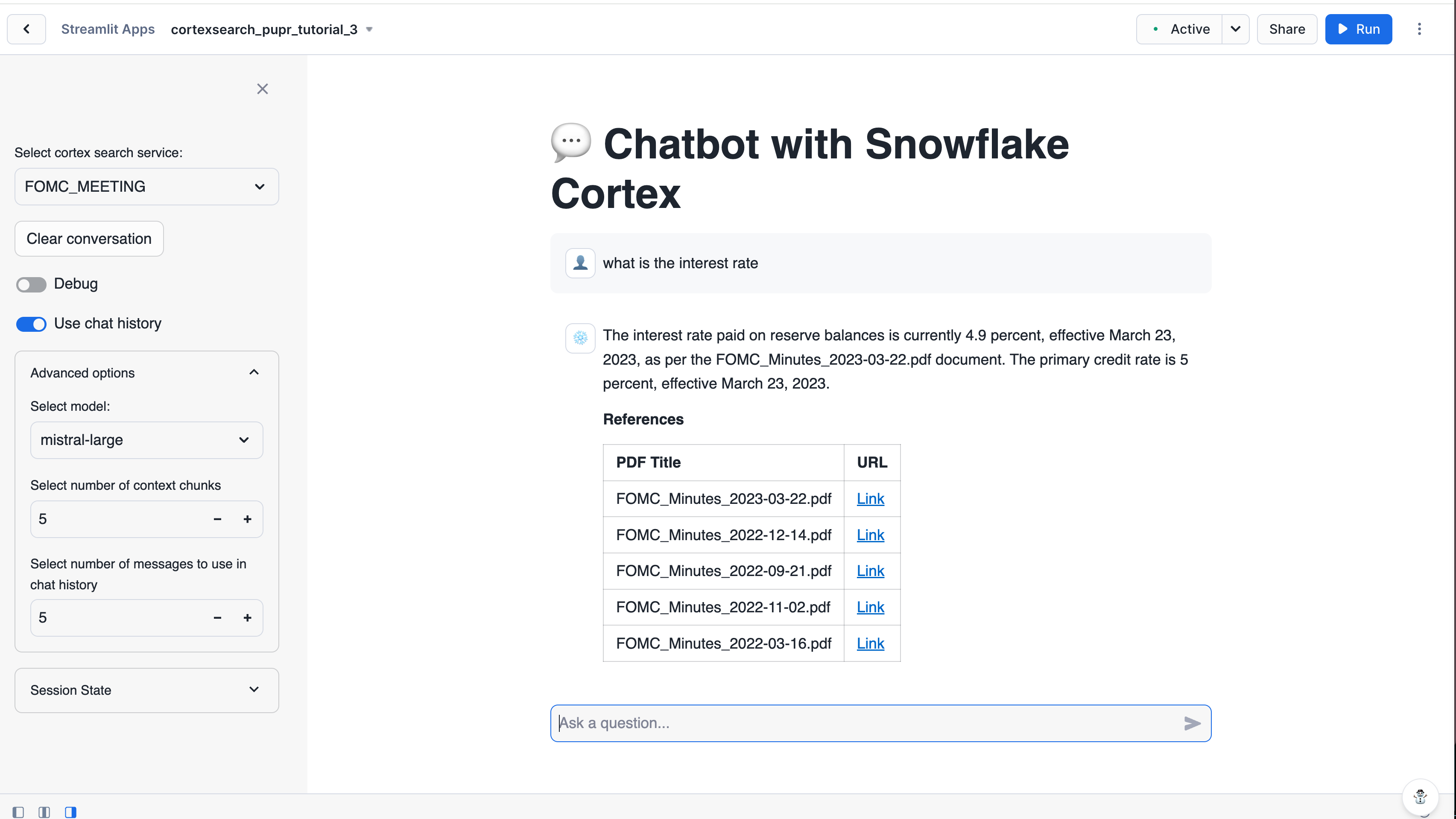
Enter a query in the text box to try out your new app. Some sample queries you can try are:
-
- Example session 1: multi-turn question-answering
How was gdp growth in q4 23?How was unemployment in the same quarter?
-
- Example session 2: summarizing multiple documents
How has the fed's view of the market change over the course of 2024?
-
- Example session 3: abstaining when the documents don’t contain the right answer
What was janet yellen's opinion about 2024 q1?
Step 7: Clean up
Clean up (optional)
Execute the following DROP <object> commands to return your system to its state before you began the tutorial:
Dropping the database automatically removes all child database objects such as tables.
Next steps
Congratulations! You have successfully built a search app from a set of PDF files in Snowflake.
Additional resources
You can continue learning using the following resources: