Sigma
Before you start
To connect Sigma to Horizon Catalog, you will need…
- Admin access to your Sigma account.
Complete the following steps to enable metadata, lineage, and popularity of your Sigma workbooks in Horizon Catalog.
1. Identify your Sigma API request URL
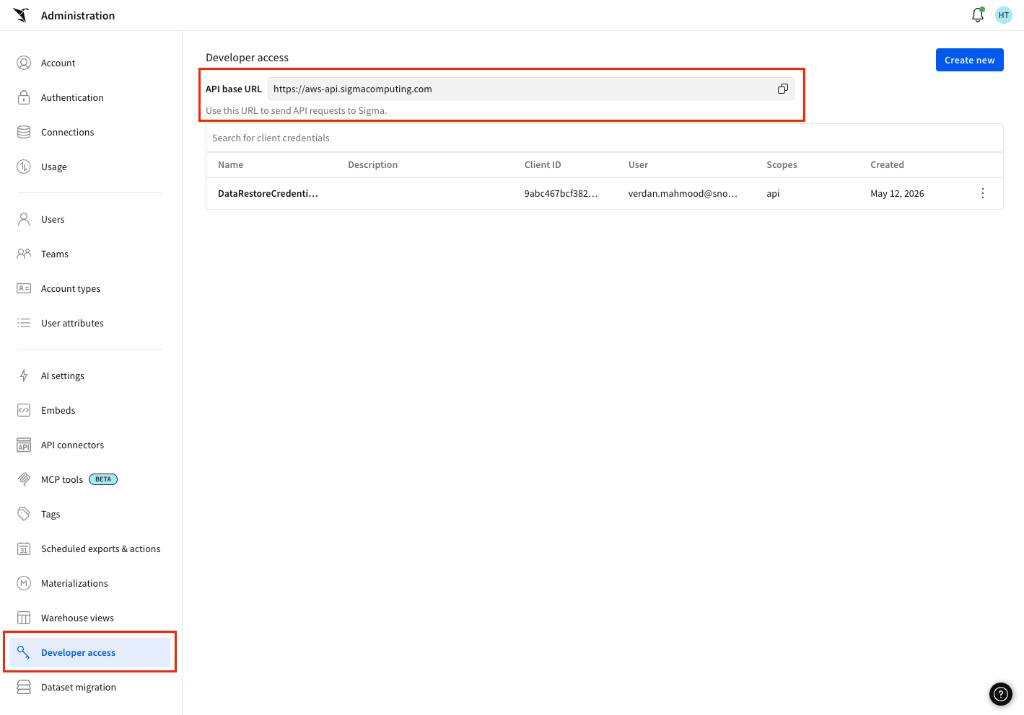
The URL Horizon Catalog uses to send API requests depends on the cloud your Sigma organization is hosted on (https://help.sigmacomputing.com/docs/region-warehouse-and-feature-support).
View your Base URL in the Administration section of Sigma. Go to Administration > Developer Access > API base URL. Keep this information for the next steps.
2. Generate an API client ID and secret
To generate API client credentials, you must be assigned the Admin account type.
-
From Sigma Home, open Administration, or select your user avatar to open the user menu and select Administration.
-
In the side panel, select Developer Access.
-
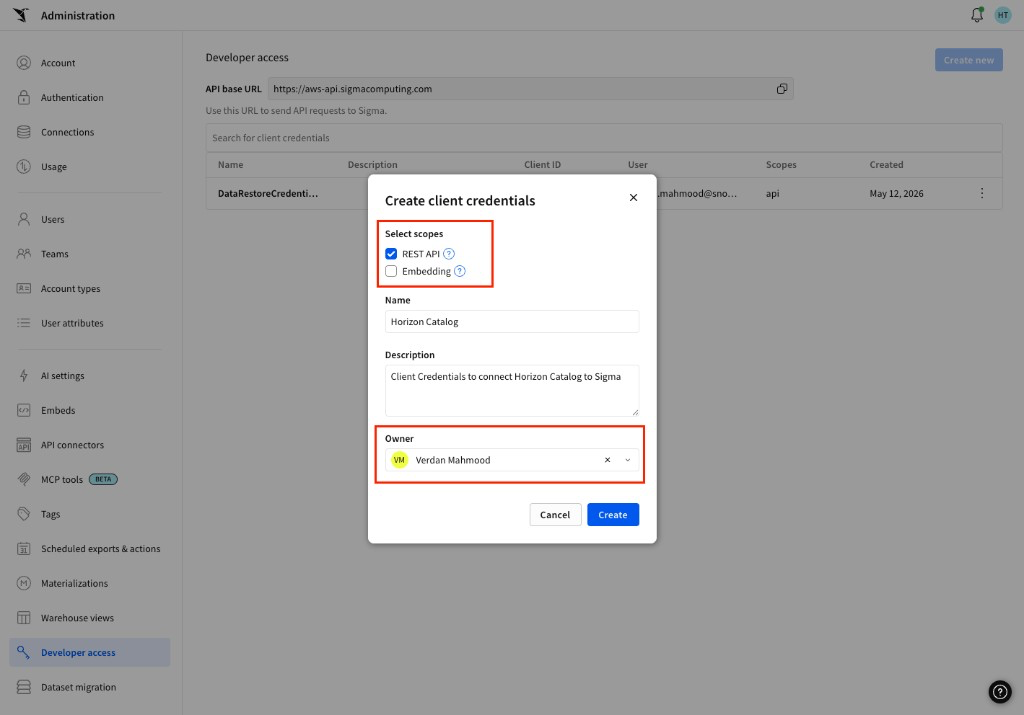
Select Create new to set up new credentials. The Create client credentials modal opens.
-
For Select scopes, select the REST API checkbox to enable the use of these credentials for the API.
-
For Name, enter a unique name to identify the credentials. For example,
Horizon Catalog. -
(Optional) For Description, enter a description of the purpose of the credentials. For example,
Token used to connect the Horizon Catalog integration. -
For Owner, set yourself as the owner, or search for and select a member of your organization with whom to associate the credentials. The API secret uses the account type permissions assigned to this user.
Note
Select an Admin as the Owner so that Horizon Catalog can fetch all workbooks available in your Sigma instance.
-
Select Create to generate the credentials.
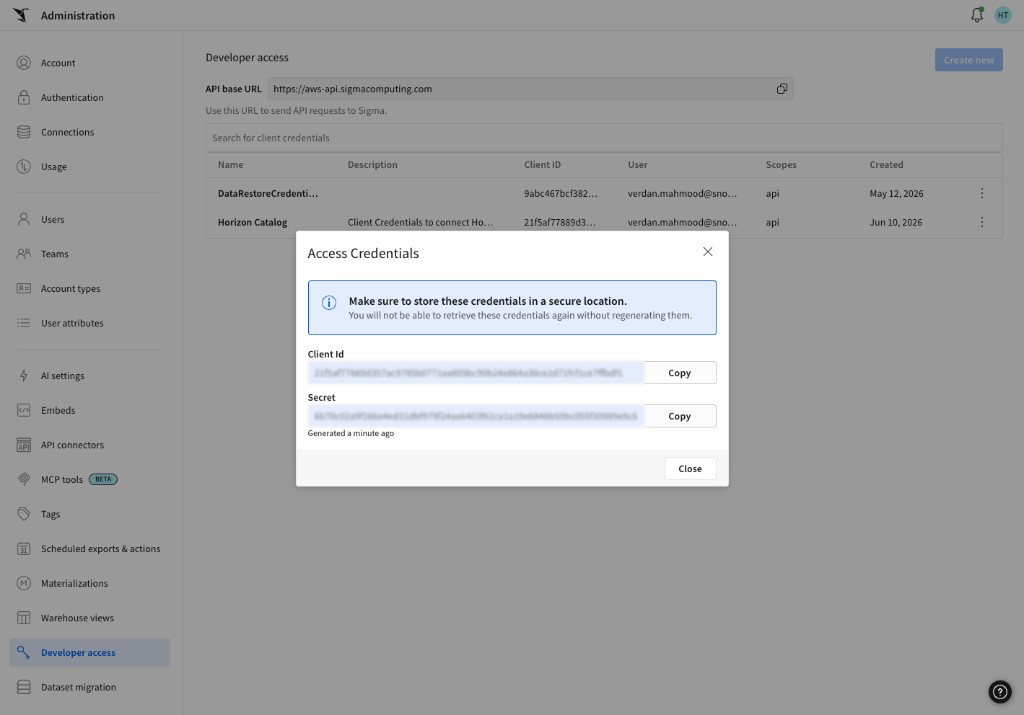
- Copy the client ID and secret, and securely store them for the next steps.
3. Create the Sigma connection
-
In Snowflake, open Catalog > Connections and select Sigma from the Metadata connections section.
-
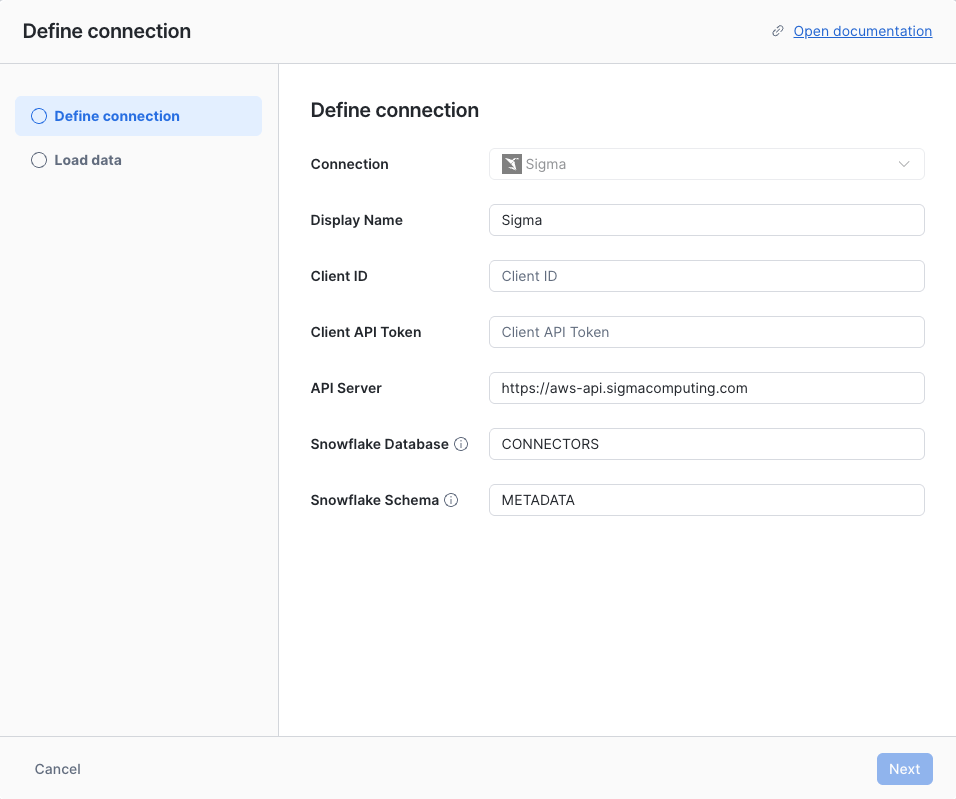
Fill out the setup form with the information as outlined below.
- Display Name: The default is
Sigma, but you can override it if desired. - Client ID: The API client ID from Step 2.
- Client API Token: The API secret token from Step 2.
- API Server: The API request URL from Step 1, based on your Sigma cloud configuration.
- Snowflake Database and Snowflake Schema: The database and schema in your Snowflake
account where Horizon Catalog stores the connector metadata. The defaults are
CONNECTORSandMETADATA.
- Display Name: The default is
Connection security
All communication between Horizon Catalog and Sigma uses HTTPS (TLS 1.2 or higher). Authentication uses an API client ID and secret, which are stored as encrypted secrets. No additional encryption configuration is required.
For more details, see Security and data protection.